Best Affordable CRM With Email Marketing Automation
Samuel Oyebode
October 28, 2025
13 min read


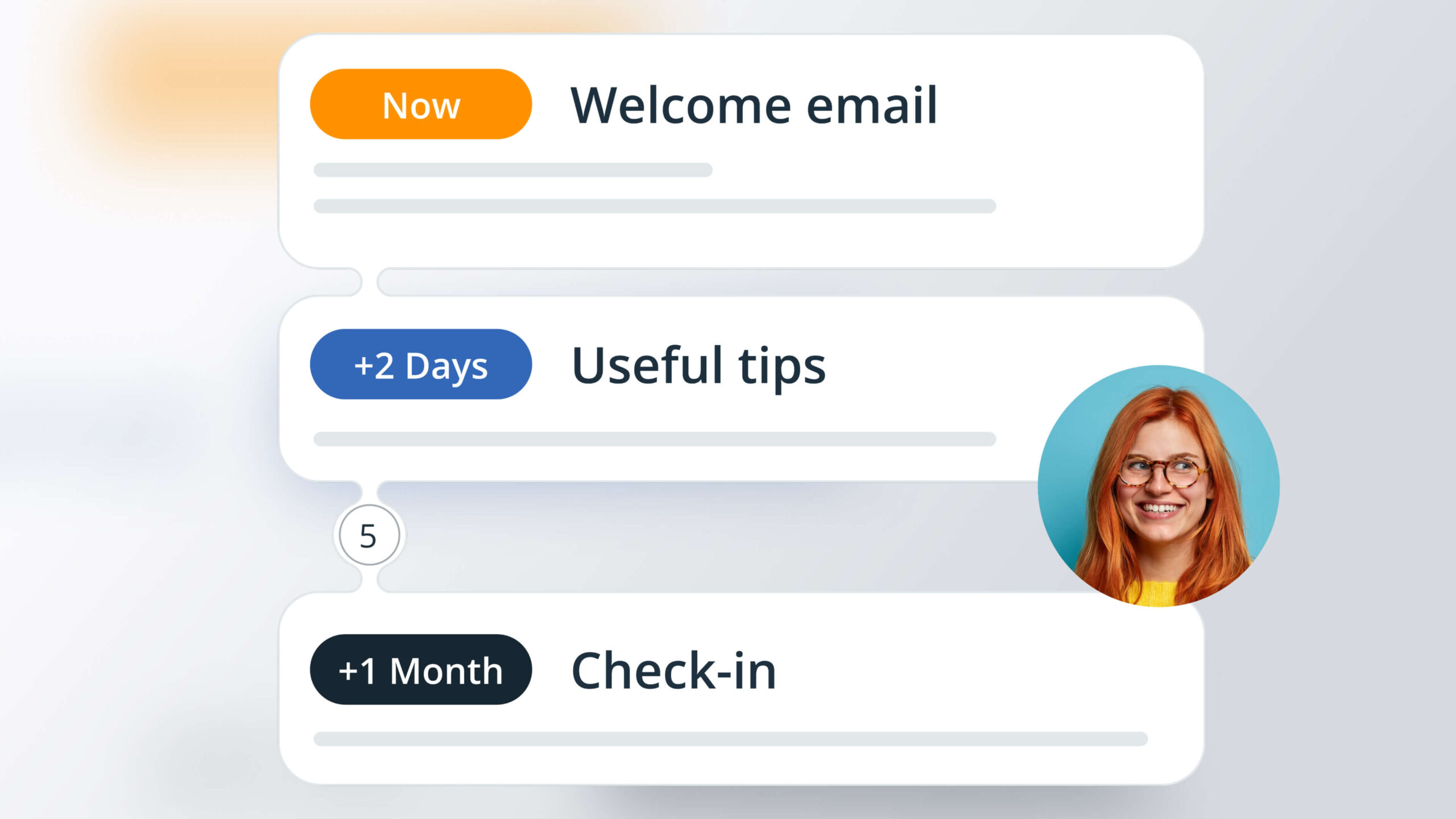
Not only marketing folks need drip emails. Email sequences can be super useful for sales, too.
That’s why you can create and edit simple email sequences right inside OnePageCRM—and add them to any CRM contact with a click.
This blog post explains how to use email sequences in OnePageCRM and shares a few examples. However, if you’re short on time, have a look at the quick video overview.
Email sequences are a series of personalized emails scheduled over a period of time. Their main goal is to nurture leads and automate follow-ups.
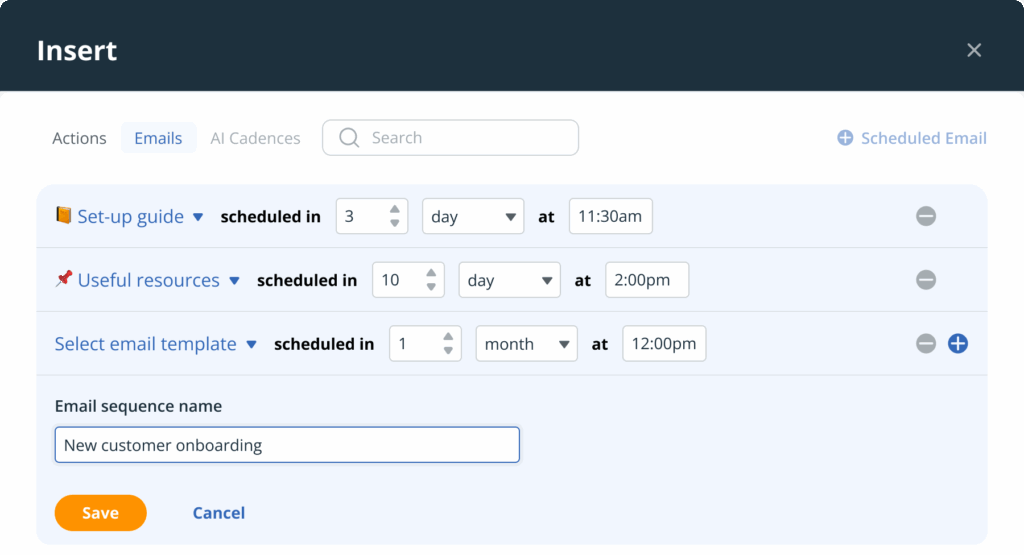
You can add a time-based email sequence in your CRM account from any Contact Page by clicking on the ‘Insert’ button.
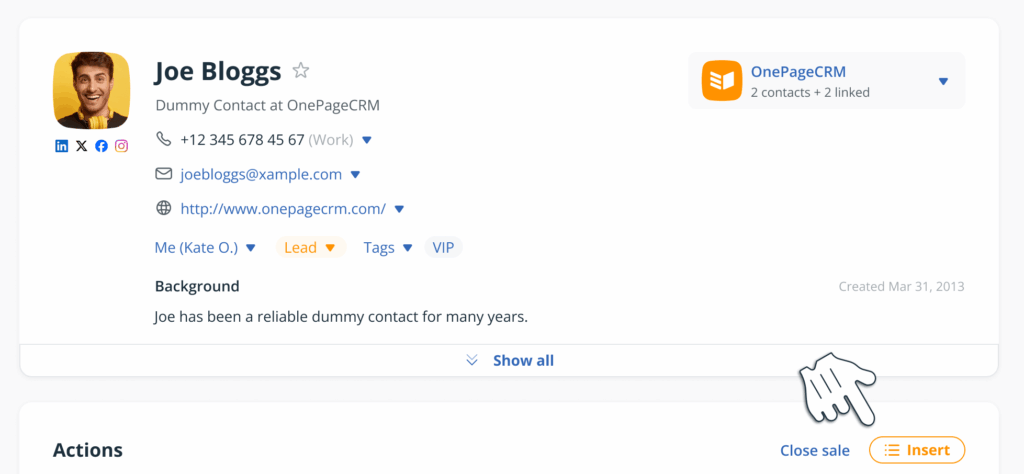
Here’s a more detailed look at what you need to create a simple email sequence in OnePageCRM.
To build an email sequence, you first need to have email templates ready.
Templates are ready-to-go emails stored inside your CRM. They include variables and cover a variety of different situations: welcome messages, demo follow-ups, re-engagement emails, and so on.
You can store hundreds of custom templates inside OnePageCRM on any plan.
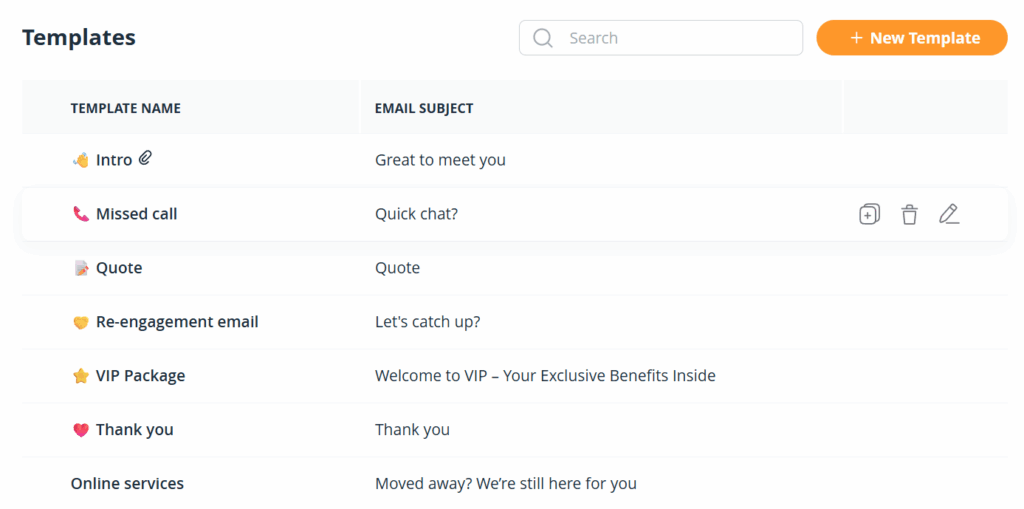
Email templates save you time, especially if you can personalize them at scale.
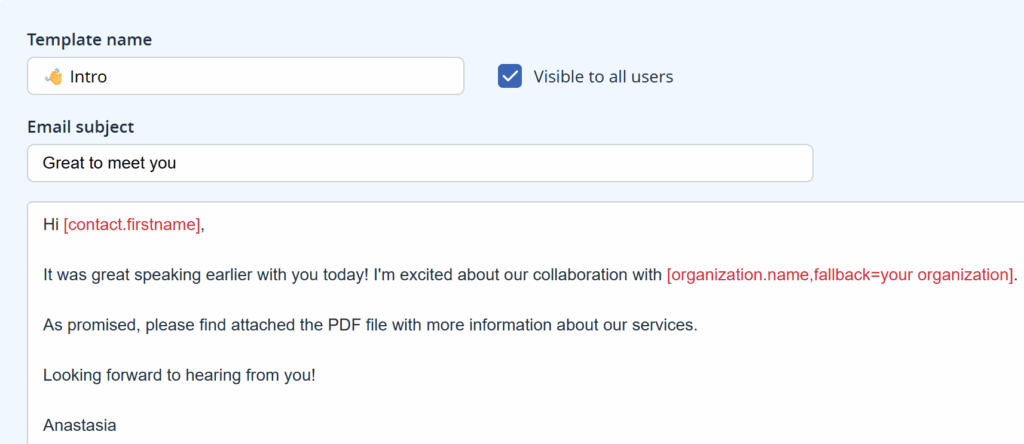
That’s why they can have variables.
For example, if you use the First Name and Organization variables, then each email sent to a contact will have their personal information instead of a generic “Hey, there”.
All of this is done automatically, without any editing from your side.
Once you have all the email templates you want to use, you can easily organize them into a sequence.
Start by creating the first scheduled email in the series and specifying when you want to send it.
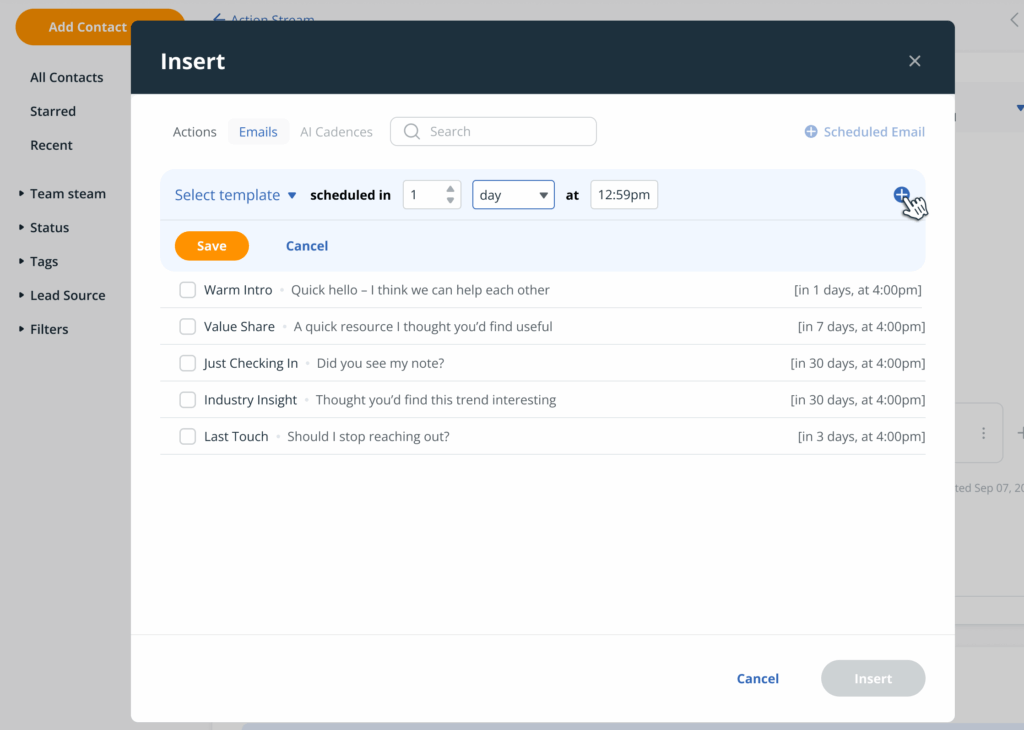
Once the first email is scheduled, you can continue adding more emails to your sequence.
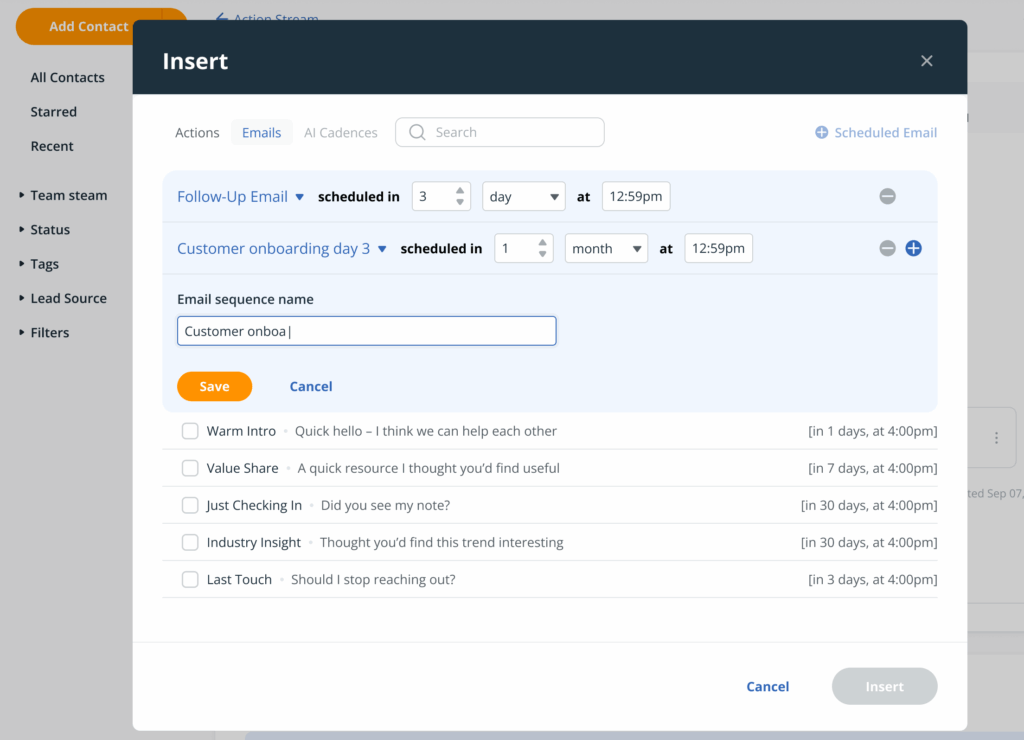
In OnePageCRM, each email sequence can be named and saved in your CRM account.
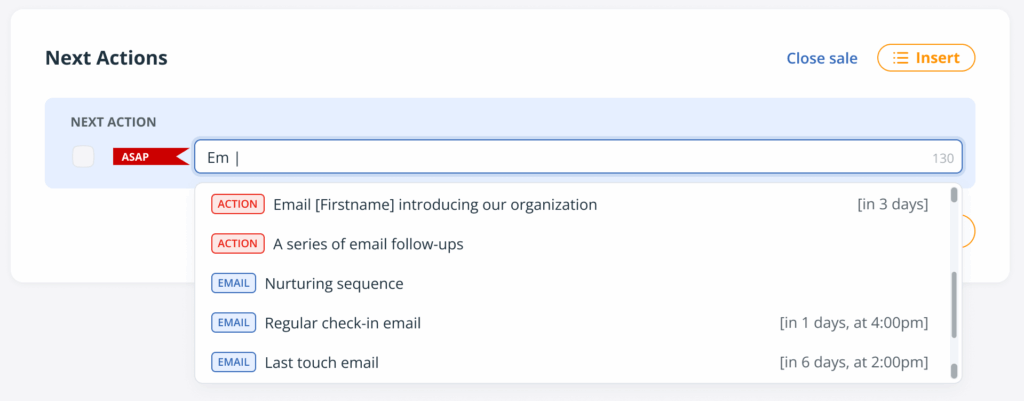
In this case, once you are typing a Next Action, you can easily choose either an individual scheduled email, a saved Action, a group of Actions, or a whole Email Sequence:
OnePageCRM doesn’t limit you to only one email sequence.
You can have multiple sequences, depending on your workflow and needs.
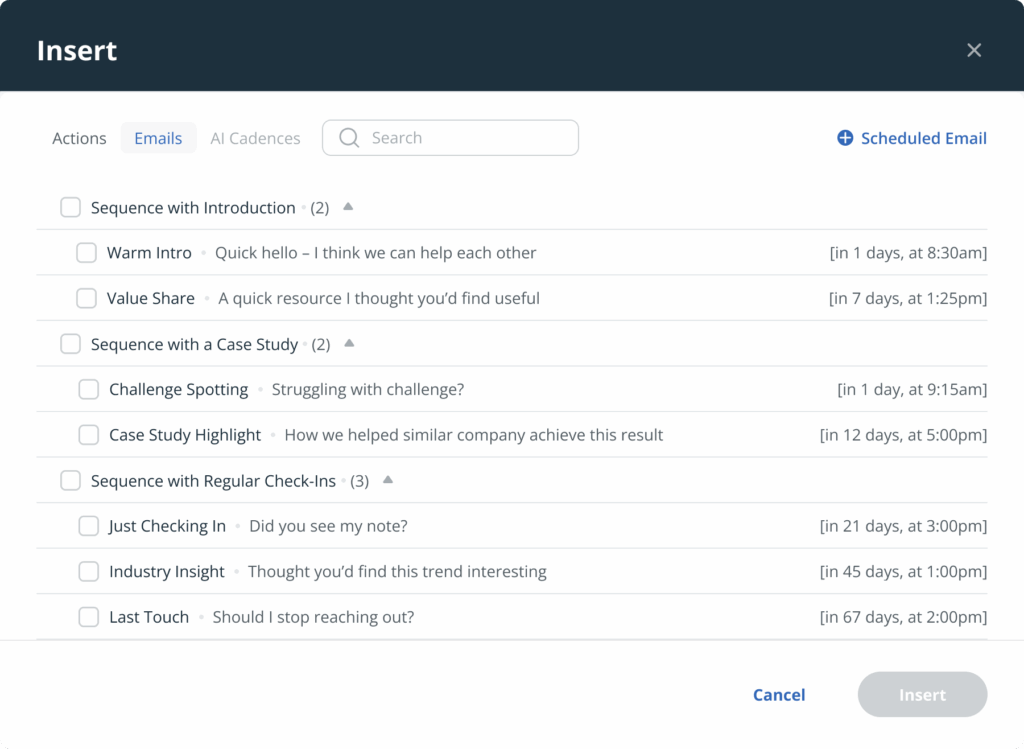
In this blog post, we’ve listed a few examples of sequences below. Feel free to use them as an inspiration.
In OnePageCRM, you can automate email sequences, too.
The Autoflow feature allows you to add email sequences to contacts based on different triggers.
For example, if a contact’s Status changes to Customer, or a sales deal is lost, or if a new tag is added to a contact.
Email sequences are designed for a specific goal. They can nurture new leads, automate sales follow-ups, or help onboard new customers.
There are many different use cases. So once your email sequences are created and saved in your CRM account, take a moment to decide in what situations you want to trigger an email sequence.
For example, you can trigger a nurturing email sequence for newly converted customers.
In this case, once the Status Label changes to “Customer”, the sequence will automatically be added to the contact.
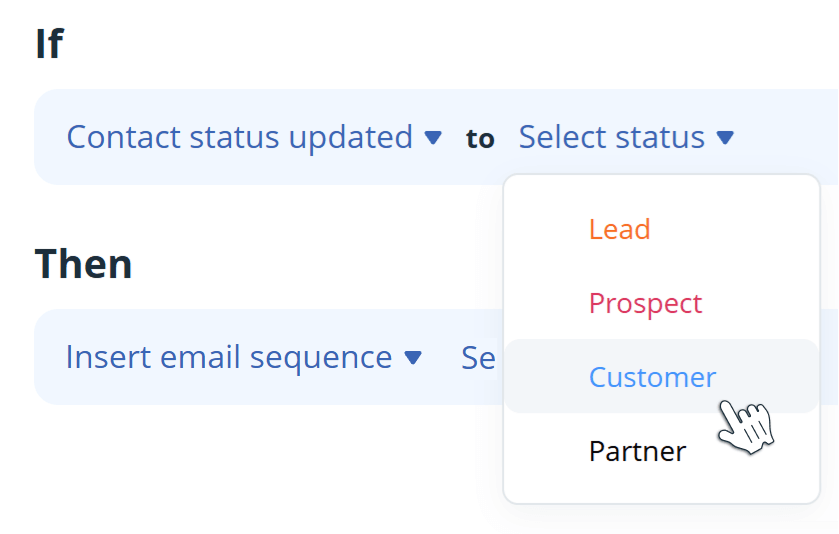
With Autoflow, you can send the first email instantly and also add a scheduled sequence.
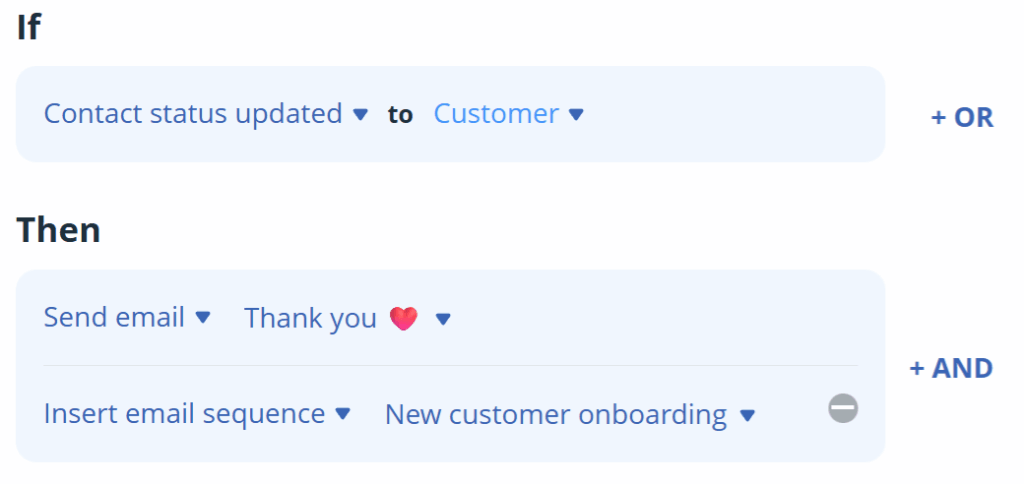
The chosen email sequence has a delivery schedule, which you defined before creating it.
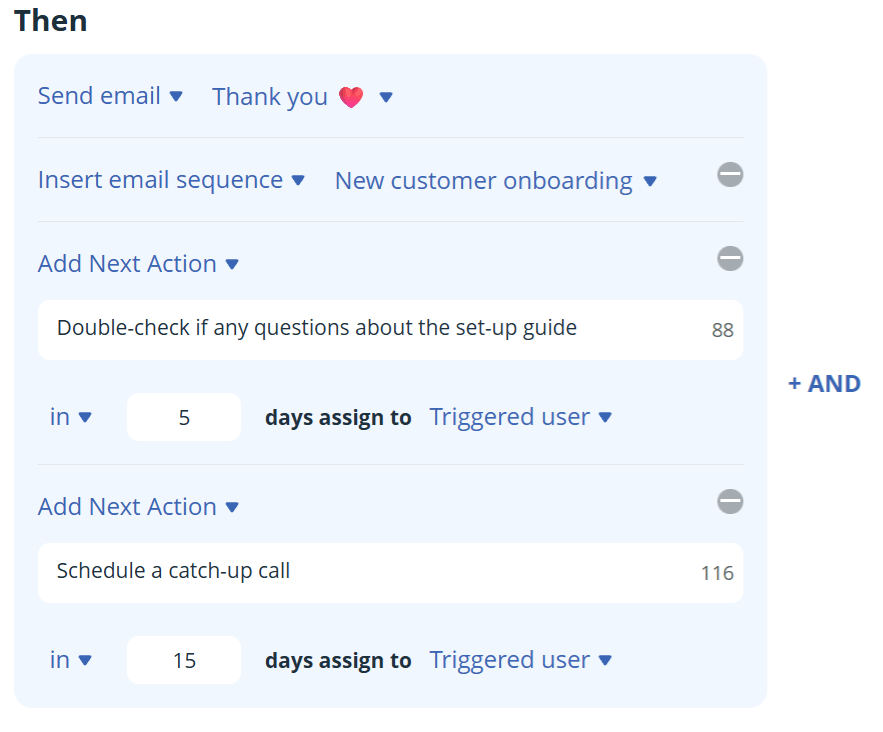
Automated emails are great, but they might not be enough.
That’s why you can use Autoflow to insert tasks (Next Actions) to any contact together with an email sequence.
For example, it can be a reminder to schedule a call in between automated emails or send a connection request on LinkedIn.
These reminders will help you keep an eye on the automated sequence and double down on human-to-human interactions when needed.
Once a new sequence is created, trigger this drip campaign for one of your test contacts. Test contacts usually have your email addresses instead of the real customers or prospects.
By testing your sequence, you can ensure that everything works as expected. It can also be a good idea to preview the email content and untick any steps you don’t want to take with a specific contact.
If you’re not sure what email sequences to start with, here are a few examples to spark your creativity.
Each of them has a different trigger in Autoflow and uses different templates.
Feel free to adjust these examples to fit your business needs.
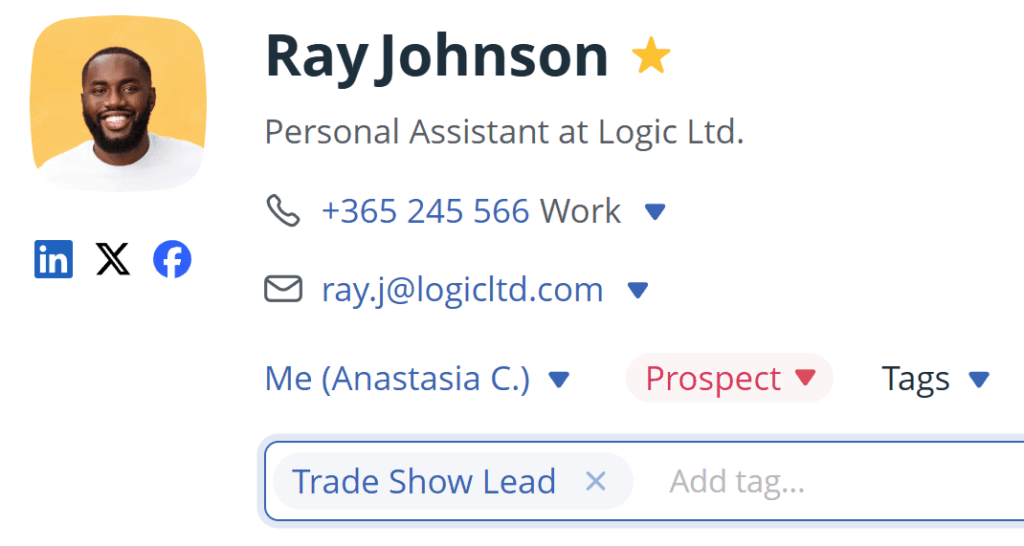
If you regularly go to different trade shows, business events, or conferences, you probably end up with quite a few potential leads. Stacking them up in your CRM with a bunch of Next Actions waiting to be completed is not always the best idea.
Once you open a new lead and add a tag, Autoflow will pop up on your screen with a ready-to-go email sequence:
You can also include a booking link to your Calendly account in one of the emails to encourage potential customers to engage with you.
In OnePageCRM, you can create free web forms for capturing new leads. They’ll be automatically synced with your CRM account.
Once a lead completes your web form, we’ll instantly create a new CRM contact and add a pre-defined tag.
However, no one can guarantee that all of these submissions are of high quality. If you don’t have an overwhelming number of new inquiries, it might be better to review them manually.
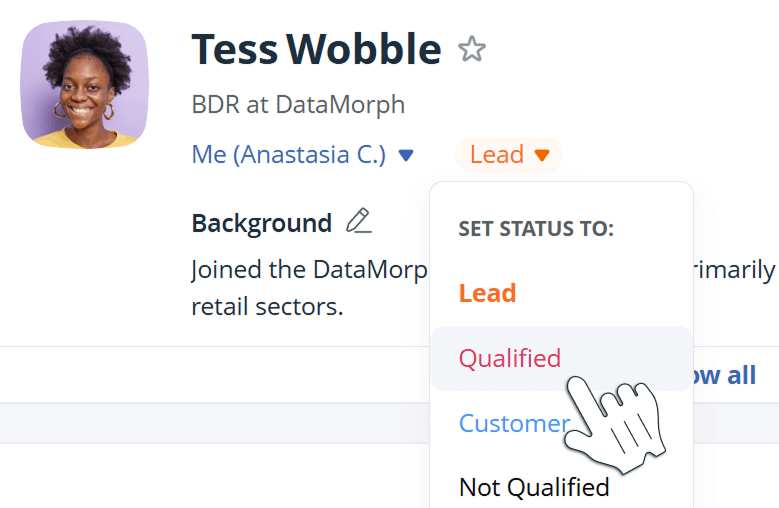
Once you go through them one by one, use the “Qualified” status for the most promising ones.
When closing sales deals, many salespeople rush to hand the new customer over to the onboarding team.
That’s where a simple email sequence can become very handy.
First of all, you can ask the newly converted prospect for feedback. This email can be sent either straight away after you mark the deal as won or in a couple of days.
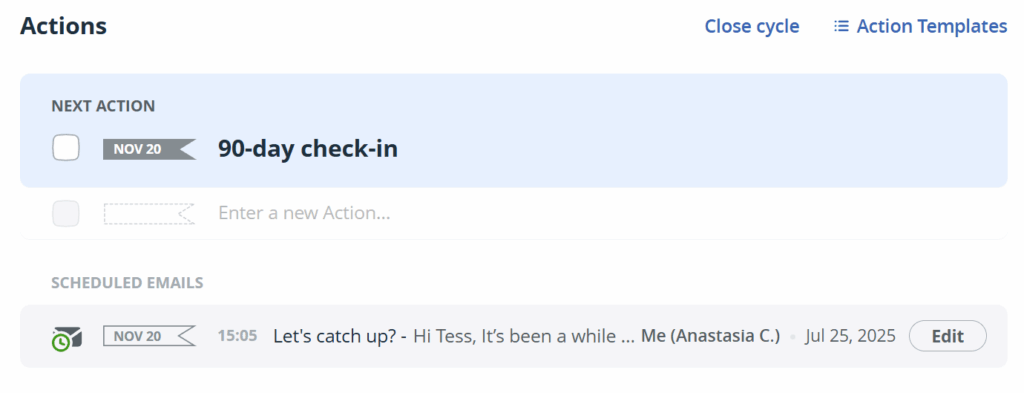
Next, your email sequence can also have a check-in email scheduled to be sent in 90 days. In this case, even after handing over the customer to another team, you can show them that you still care about their experience with your company and their success.
Email sequences are a powerful feature that helps you make your sales outreach or customer communication more efficient.
However, with Autoflow, you can do much more than just schedule emails. There are quite a few triggers and operations for automating different workflows in your CRM.
Make sure to check them out!