

Best Email CRM Tool for Follow-Ups and Check-Ins (2026)
Samuel Oyebode
February 17, 2026
19 min read


Google has no CRM software.
So, how do you manage customers, sales, and post-sales without ditching the tools you’ve been using (Google Workspace) for some shiny new toy (dedicated CRM)?
A Google CRM — or more accurately, a CRM for Google Workspace — is the answer.
A Google CRM is not a product made by Google.
Instead, the term refers to any CRM with Google Workspace integrations. That includes CRMs that connect with tools like Gmail, Google Drive, Docs, Calendar, Sheets, and other Google apps you already use to run your business.
But of course, simply integrating with Google Workspace is not enough.
When you’re hunting for Google CRM software, you need to look beyond surface-level integrations. And instead, focus on those CRMs that not only fit into your existing workflow with Google tools, but also make your business run more efficiently, overall.
OnePageCRM was built with Google Suite users in mind. That’s why its Google Workspace integrations go beyond basic data sharing and focus on improving how you actually manage sales and customer relationships.
Here is how OnePageCRM, one of the best small business CRMs, connects with the Google Workspace tools you already use to run your business.
OnePageCRM offers two-way Gmail integration, which means that from inside the CRM, you can send and receive emails to and from your Gmail account. But that’s not all.
Every email you exchange with a contact is automatically saved in the CRM. You can see the full conversation history alongside the contact’s profile. You can also pull in past Gmail conversations, so your entire email history lives in one place.
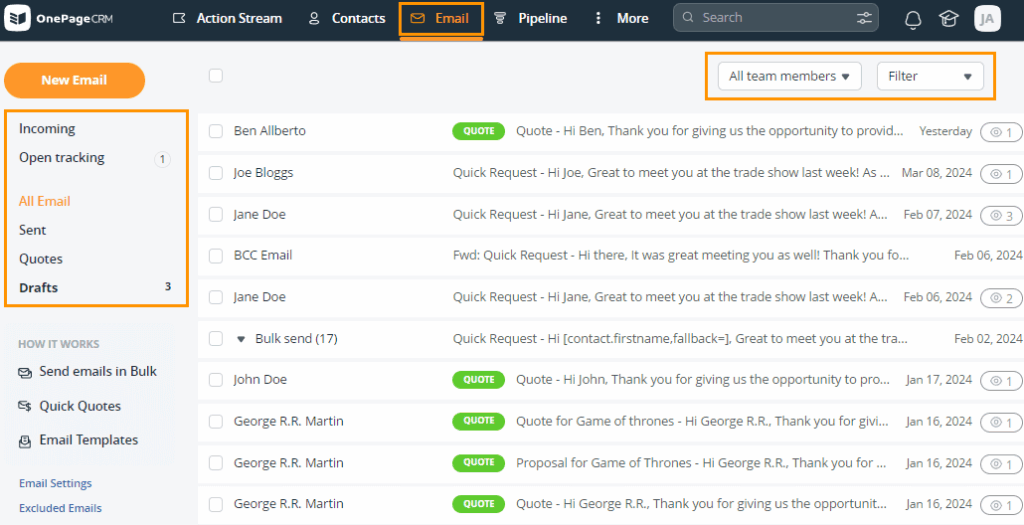
On top of that, you get extras (dubbed Gmail CRM tools), several of which Gmail doesn’t offer on its own:
But that’s a whole other conversation.
OnePageCRM comes with Google Drive integration.
This integration lets you pull files directly from Google Drive and attach them to records inside your CRM. You can add files to notes, calls, meetings, or deals within a contact’s profile, keeping everything related to that customer in one place.
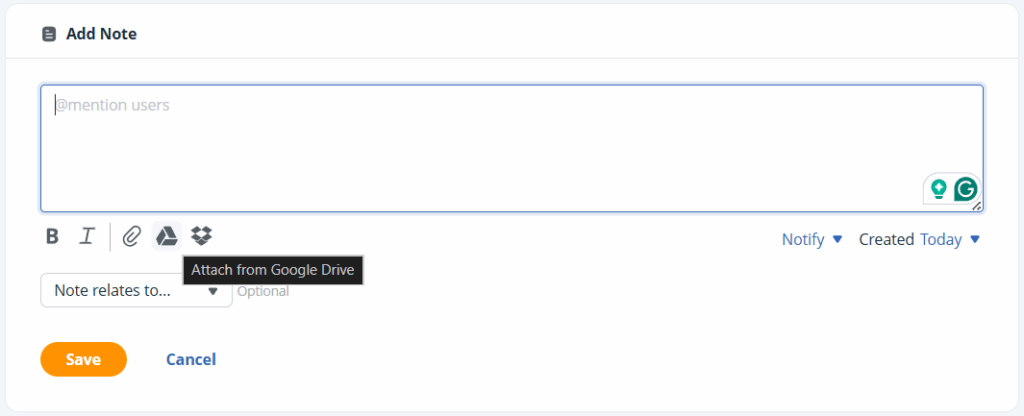
For example, let’s say you already have a supporting document stored in Google Drive and you want to attach it to a contact in your CRM system.
Instead of downloading the file to your computer and uploading it to your CRM, you simply click the Drive icon in OnePageCRM and select the file you want to attach.
When you or a team member needs the file, you just open the relevant contact and find it right there, neatly organized within the note, deal, meeting, or call it was added to.
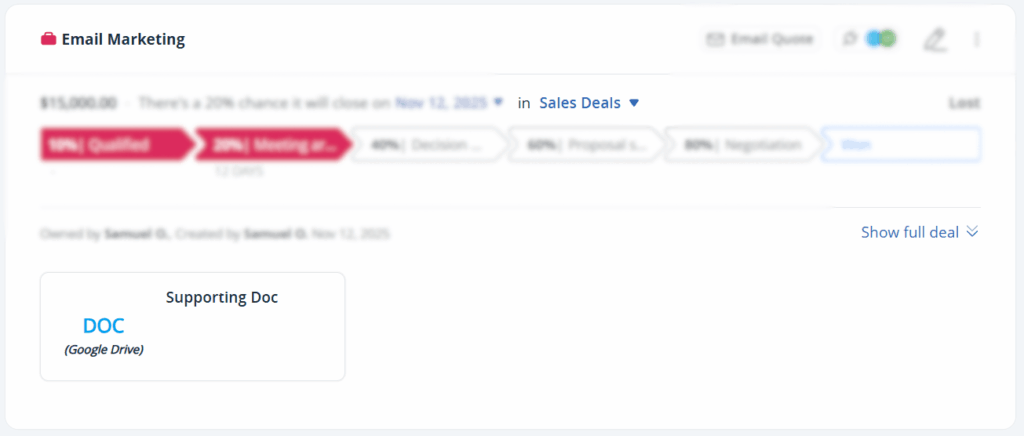
And since the file is stored on Google Drive, it doesn’t use any of your CRM storage space.
OnePageCRM integrates with Google Contacts, as well.
With this, you can push contacts and their full profiles from OnePageCRM to Google Contacts. That includes notes, emails, calls, and other important details related to each contact.
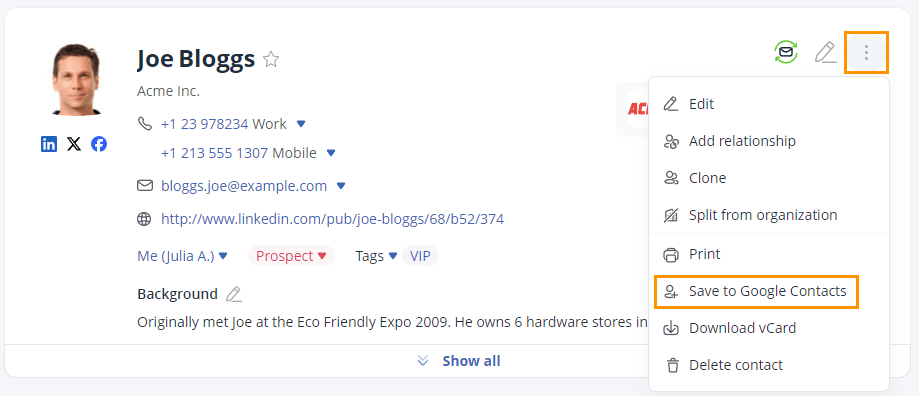
Any updates you make inside OnePageCRM are automatically reflected in Google Contacts, so you always have up-to-date information in your Google Workspace.
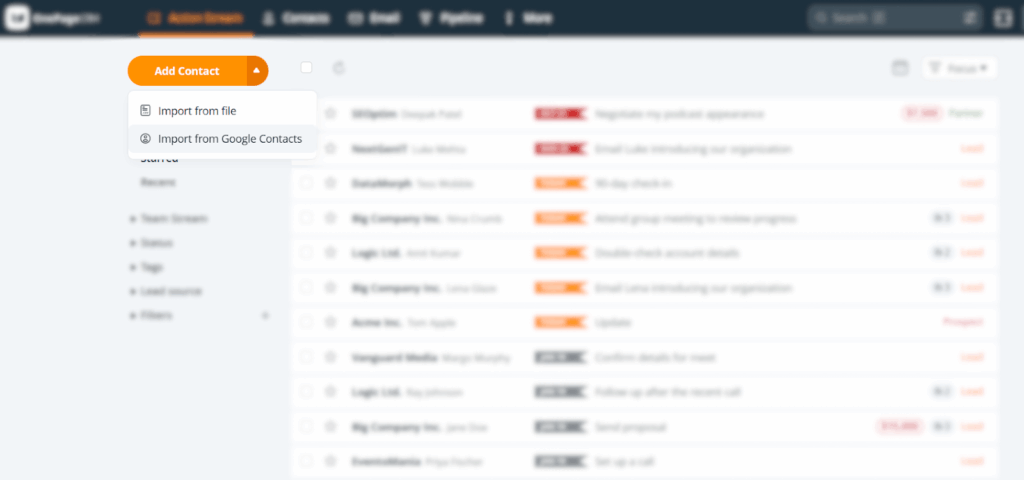
And if you already have contacts saved in Google Contacts, you can import them into OnePageCRM in just a few clicks.
OnePageCRM also has a Google Chrome extension for capturing leads instantly. This browser extension helps you grab leads and their details from emails, websites, or social media pages and add them straight into your CRM system.
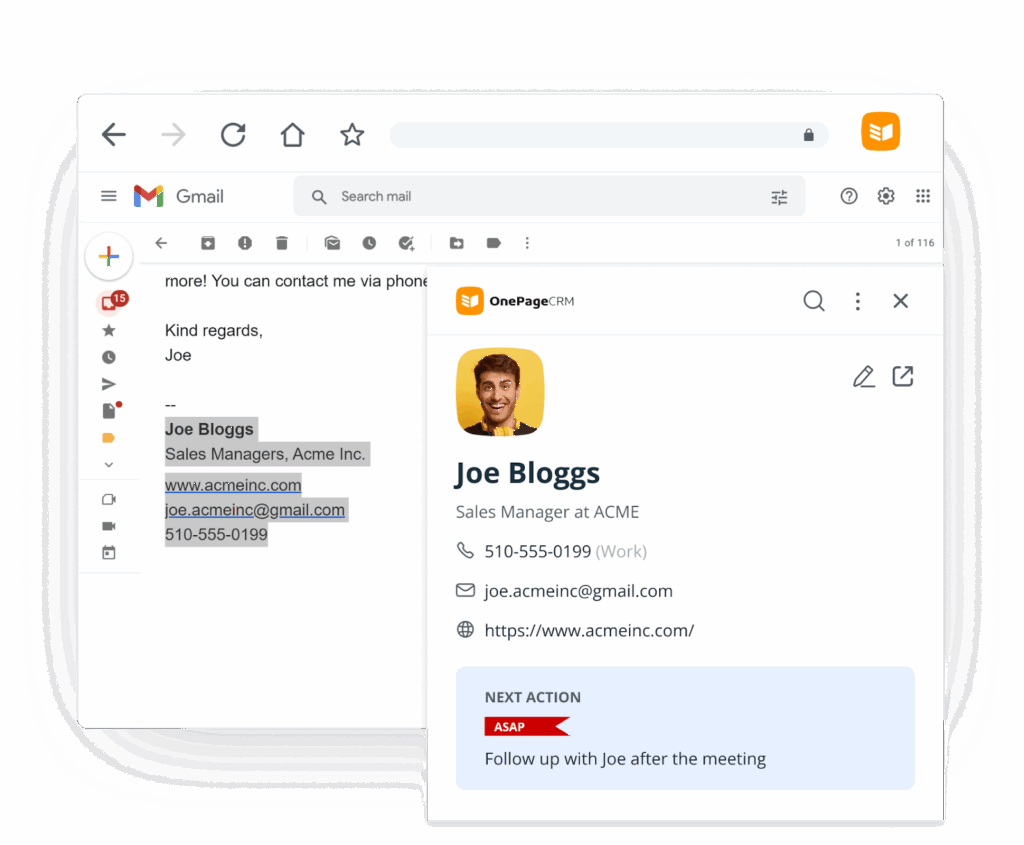
For example, you might be browsing a company website and come across a promising prospect. Instead of copying and pasting their details into your CRM, you can simply highlight the information, click the Lead Clipper icon, and have everything ready to save as a new contact.
It’s even better on social media. When you’re on a prospect’s profile, one click is enough to add them to your CRM system.
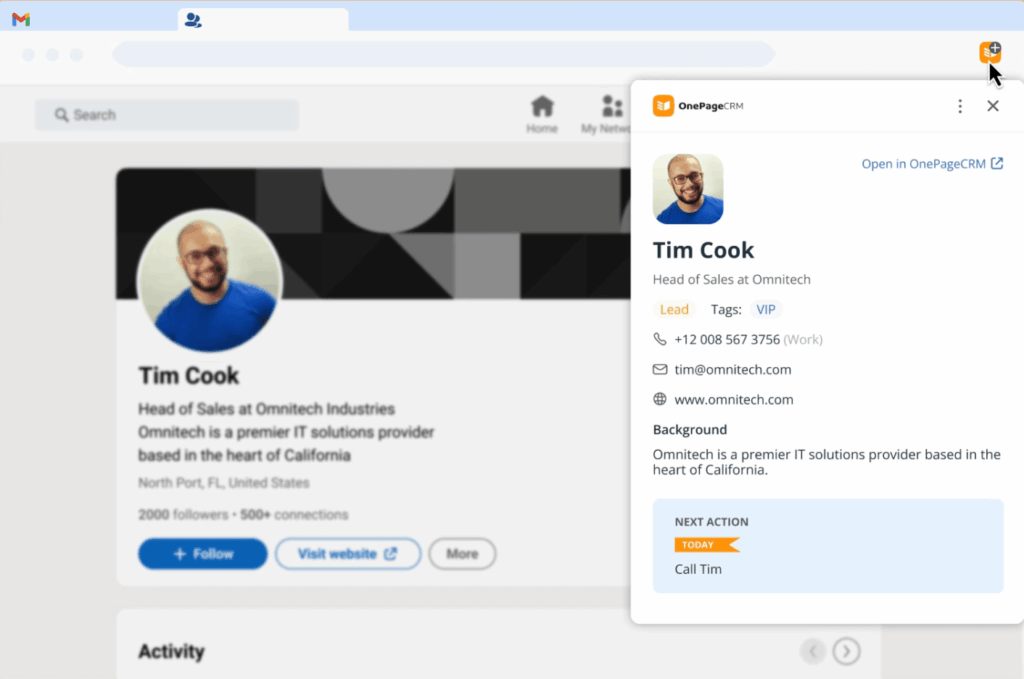
Lead Clipper also lets you add useful context. You can leave notes, set a follow-up action, apply tags, or assign the contact to another team member.
This means every new lead can enter your CRM with context, which is good for your business.
OnePageCRM integrates with Google Calendar to help you stay on top of your daily workload. Once connected, you’ll be able to see your CRM activities and tasks—follow-ups, meetings, or calls—in the Google Calendar.
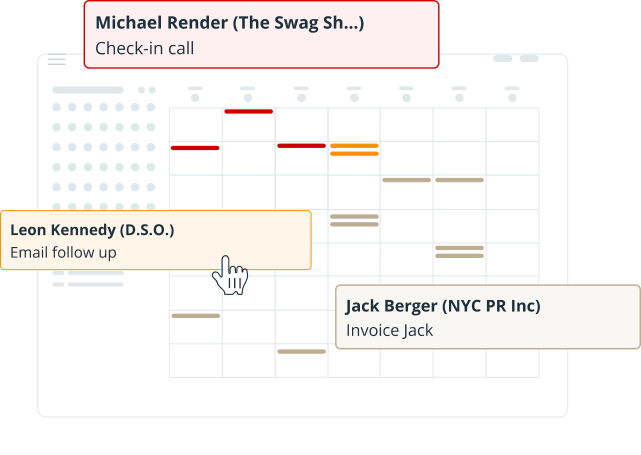
You’ll also be able to see your team’s schedule, so you know who is working on what and when.
In this section, we’ll look at CRM software that offer strong Google Workspace integrations and are well-suited for small businesses looking to get organized and close more sales.
| CRM | Starting price | Best for |
| OnePageCRM | $9.95 | Email open tracking & follow-ups |
| Streak | $49 | Gmail-based CRM |
| Copper CRM | $9 | Workflow automation |
| NetHunt | $24 | Multi-channel communication |
OnePageCRM offers you integrations with Google Drive, Google Calendar, and Google Contacts, but one of its standout features as a Google CRM is the Google Chrome extension called Lead Clipper.
With the free Google Chrome extension, you can capture leads directly from your Gmail inbox, a website, or a social media page and add them to your CRM with a single click.
The full Gmail sync is another standout feature. It lets you send and receive emails directly from the Google CRM, view complete conversation histories, and track email opens. And let’s not forget the email sequences functionality that helps you send follow-up emails automatically.
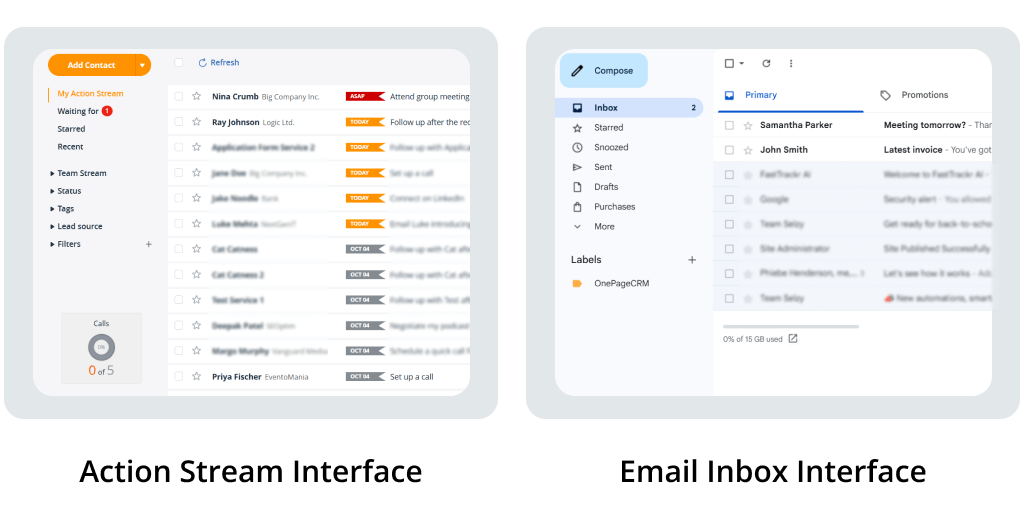
And to make the transition even easier for Google Workspace users, this CRM’s interface resembles a Gmail inbox.
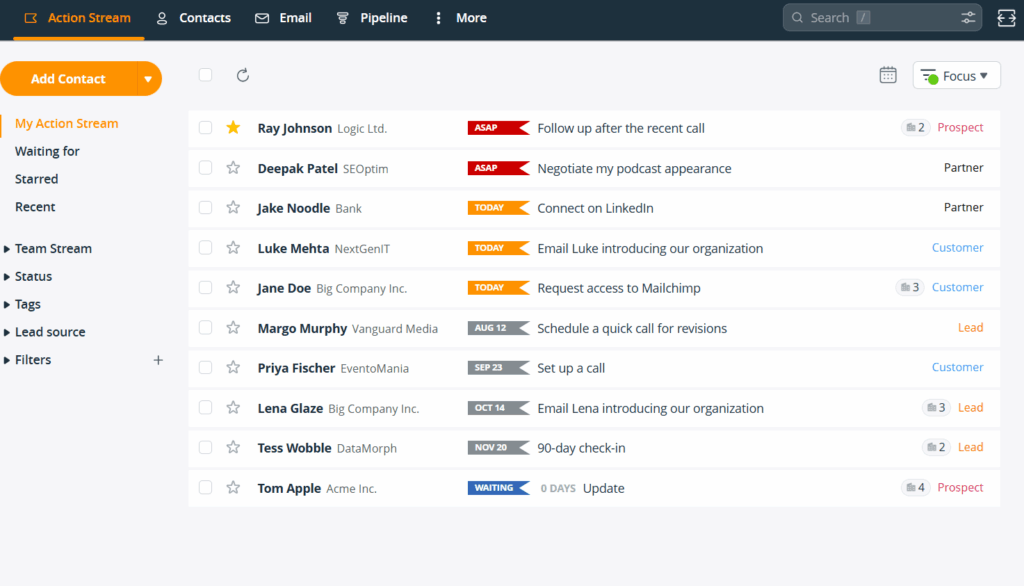
In addition to integrating with Google Workspace tools, OnePageCRM features Next Actions to help you close more sales. To be specific, it lets you set the next steps you must take in order to move each contact closer to buying. Then, it automatically arranges these next steps according to which ones need to happen first, and even gives you reminders to follow through.
Starting Price: $9.95 per user/month
Key Features:
Google Workspace Integrations:
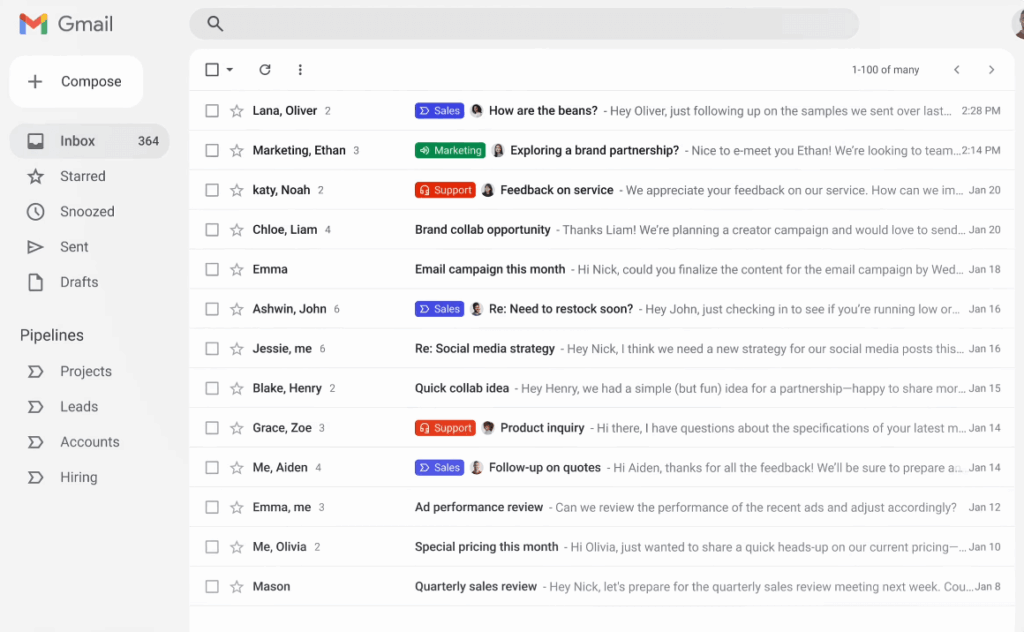
Streak is a built-in Gmail CRM. Instead of pulling your emails into a separate CRM interface, Streak lives inside your Gmail inbox. You can manage contacts, leads, deals, and projects without ever leaving this Gmail CRM app.
This setup works well if you’re running a solo business or part of a very small team. Once your team grows and you start handling more contacts, emails, users, and deals, the Google CRM can begin to feel slow and inadequate.
It’s also important to note Streak’s flexibility problem. Since the Google CRM software is built entirely around Gmail, it works best when Gmail is your primary email tool. If you later decide to use other email providers like Outlook, Proton Mail, Apple Mail, and the like, you’ll likely need another CRM.
Starting Price: $49 per user/month
Key Features:
Google Workspace Integrations:
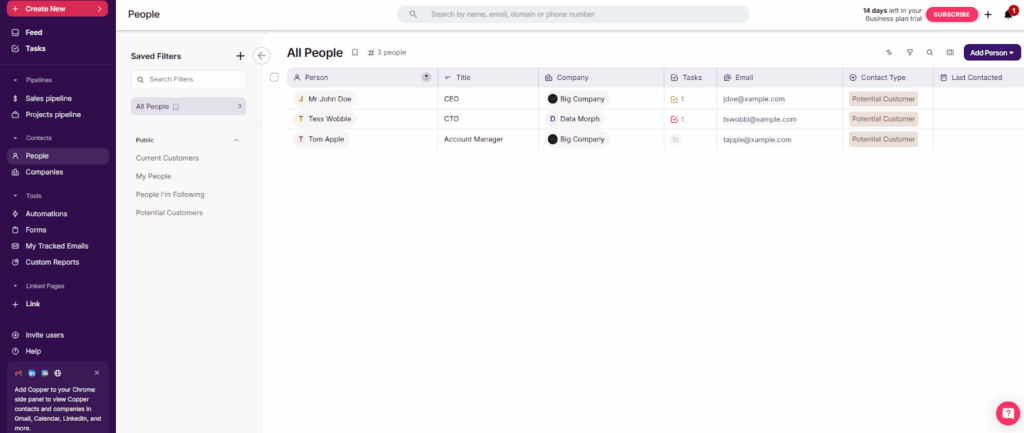
Copper CRM integrates with a wide range of Google Workspace tools, including Gmail, Google Calendar, Google Docs, and Google Sheets, making it easy to keep working with apps you already know.
One of Copper’s perks as a Google CRM is that you can access its functionalities directly from a sidebar inside your Gmail inbox. This’ll come in handy if you spend most days inside your Gmail and need to manage customers without leaving the email tab.
The platform is fairly easy to use and includes most of the features you would expect from a standard CRM. One of its stronger areas is workflow automation. You can set up triggers for task reminders, automated email replies, and other activities, which helps reduce manual work and keeps things moving.
Copper also offers pipeline tracking, AI-driven insights, sales forecasting, and automated data entry.
However, as your business grows and your processes become more complex, this Google CRM tool may struggle to keep up. On top of that, many useful features—like sales and lead management, non-Google workspace integrations, bulk emailing, and more—are only available on higher-priced plans.
Starting Price: $9 per user/month
Key Features:
Google Workspace Integrations:
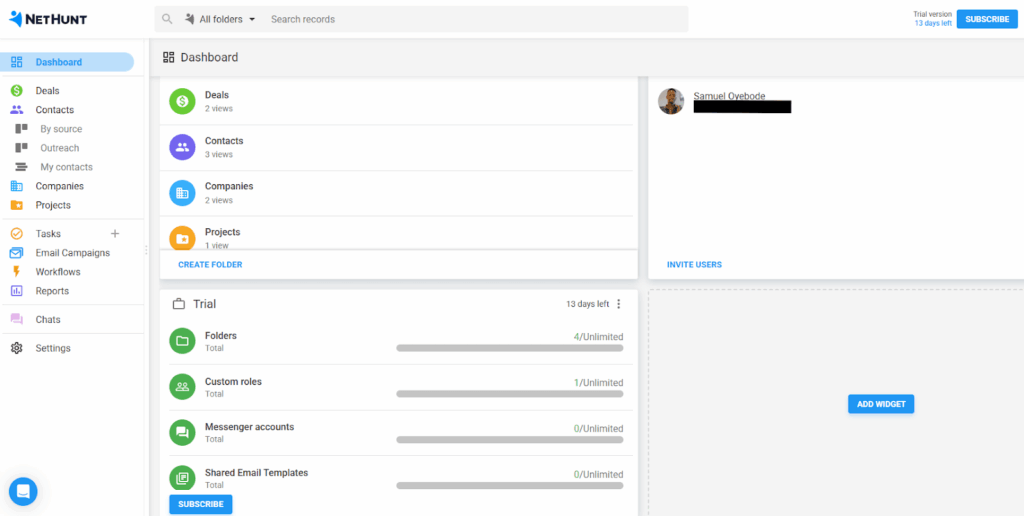
NetHunt CRM is another Google CRM tool that’s designed to work directly inside your Gmail inbox. With their Gmail add-on, you can handle CRM tasks—like managing your sales processes, automating workflows, collaborating on deals, and running email campaigns—without leaving the Gmail app.
NetHunt also supports multi-channel communication, which lets you track and reply to customer interactions from Gmail, WhatsApp, LinkedIn, Instagram, and more.
NetHunt is not without limitations, though.
First off, this CRM houses more than 10 tabs and doesn’t offer you a Kanban board to manage deals and projects. This can make the Google CRM software tough to master and use—especially if yours is a small team.
The reporting functionality is also unimpressive. While it covers the basics, it lacks the depth and customization you’d need for more advanced analysis.
Starting Price: $24 per user/month
Key Features:
Google Workspace Integrations:
There are a lot of CRM tools that integrate with Google, but not all of them are worth your time.
So before you commit to any Google CRM software, here are a few things worth paying attention to:
If the Google CRM you’re considering checks most of these boxes, you’re probably on the right track. And if you’re still not sure which one to go with, we have a recommendation for you below.
Google may not have a native CRM, but that doesn’t mean you’re out of options.
Many CRM software integrate with Google Workspace to allow you to manage customer relationships and sales while still working with the Google tools you already use every day.
OnePageCRM is of those CRMs.
It’s one of the best CRM software for businesses that want to organize their contacts, follow up with undying diligence, sell more products and or services, and track their post-sales processes.
Built with Google Workspace users in mind, it’s especially useful if you rely heavily on Gmail and want full email sync, or like the idea of capturing leads directly from your inbox, social media, or any website you visit. And if you already use Google Contacts, Drive, and Calendar, those fit into the workflow, as well.
Small businesses in more than 80 countries already use it. You can use OnePageCRM for free for 21 days—without a credit card.


More than just a writer, Samuel is a communications expert. He understands how confusing and overwhelming SaaS products can be. That's why he's spent 6+ years helping SaaS brands deliver simple, actionable content that makes their products easy to understand.