How to Use Notion as a CRM (+Free Notion CRM Template)
Samuel Oyebode
January 22, 2026
17 min read



Not everyone has the time or resources to build a custom Google Sheets CRM. So, we divided this guide into two parts.
In the first part, you’ll see how to use a ready-to-go and free CRM spreadsheet template in Google Sheets.
The second part is for those of you who want to keep your spreadsheet skills sharp and are ready to build your own templates in Google Sheets or Excel.

Here, we’ll explain how to use a free CRM spreadsheet template on Google Sheets, customize it to your needs, and turn it into a dynamic list of contacts rather than a static phone book.
If you don’t like written instructions, we also have a quick video overview:
This free template is designed for Google Sheets (since it’s easier when everything is in the cloud), but you can also download it as an Excel file.
Please note that you need to be logged into your Gmail account. When you click on the button below, Google will automatically create a copy of the Google Sheets template and save it to your Google Drive.
The great thing about this template is that it’s not gated. We are not asking for your email address; you can use it as you wish—literally, no strings attached.
There are dozens of CRM templates built on Google Sheets.
Regardless of which one you choose, familiarize yourself with the different tabs and columns that the template has. This will help you compare templates and select the one that works best for you.
You can even create two copies of the same document. The first copy can be used for your tests. Just let your creativity flow, change data in different fields, see how they interact, sort the contacts, etc.
Get a feel for how the template works without the fear of breaking something. To make the right choice, you need to understand whether it’s a good fit or not.
Once you’re ready, create the second copy. You’ll need it to populate it with real data and not worry that your tests might have broken some filters or formulas.
Once you feel comfortable with the template, add real data.
There are several fields you need to pay attention to.
Next Actions have two associated columns:
These are your follow-up reminders. There’s little sense in having a long list of contacts and not doing much with any of this data. The first two columns in this spreadsheet CRM are specifically designed for reminders—to make it easier for you to know what needs to be done with each specific contact.
Next Actions also have conditional formatting. For example, if a follow-up is overdue, the cell will turn red.
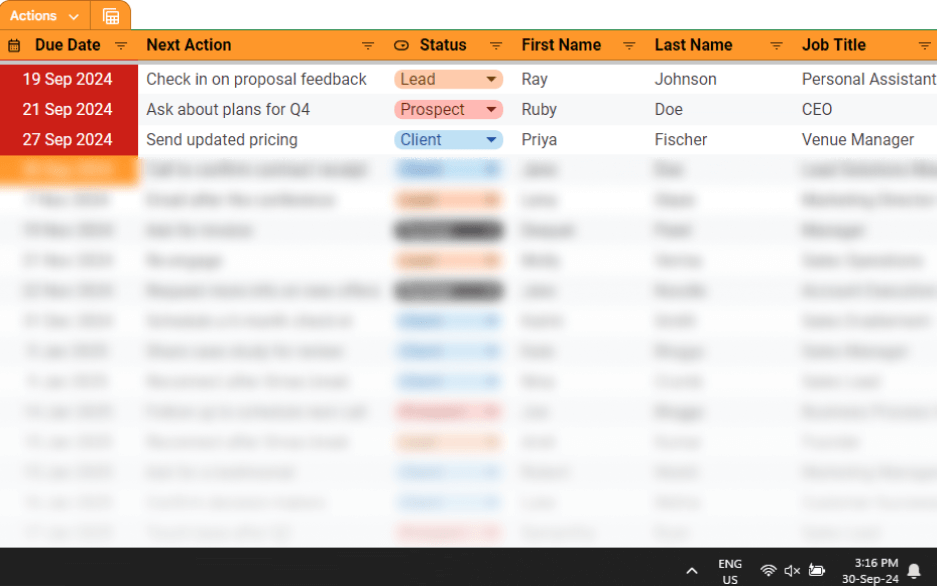
If something is scheduled for today, it will turn orange.
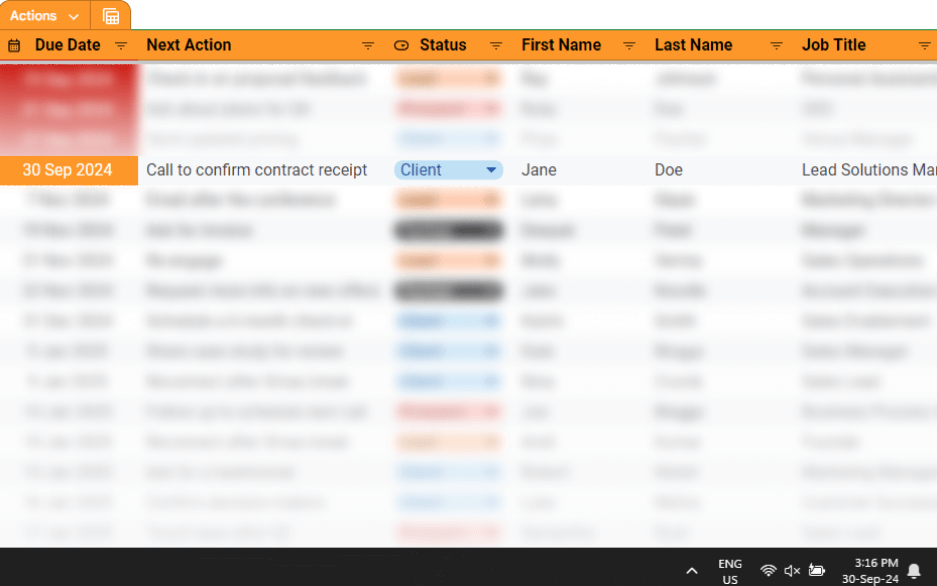
All future tasks remain grey.
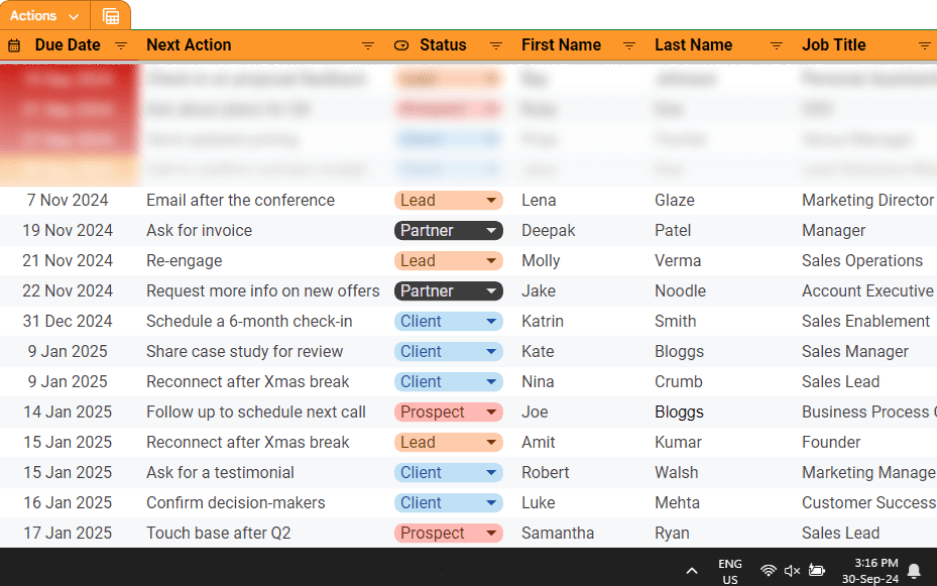
This makes it easier for you to spot the follow-up reminders that need your attention today.
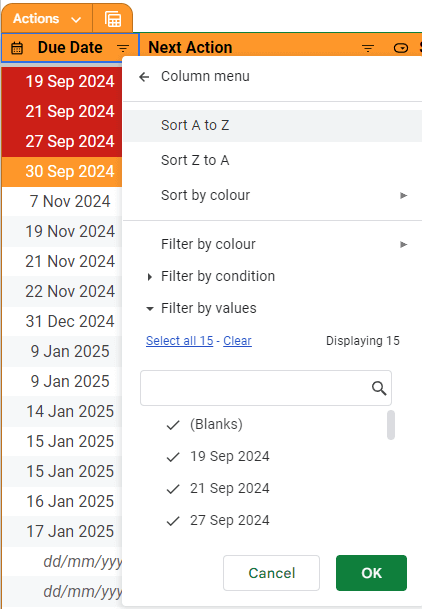
You can also easily filter them by date and have the most urgent ones at the top by clicking on Sort A to Z.
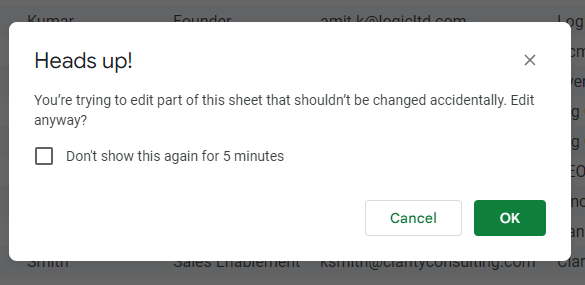
If you get a heads-up warning when editing the template in Google Sheets, still proceed. This pop-up is just a way to avoid any accidental changes.
Please note that in this template, all dates have formulas. For example:
=TODAY()
=TODAY() - 10
=TODAY() + 5
This was done so that regardless of the day you download the spreadsheet, you’ll be able to see the color codes associated with different dates (overdue, today, and future).
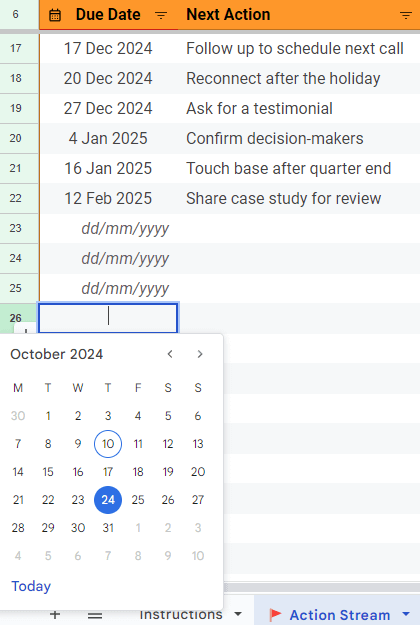
Once you download the file, edit it by inputting dates in your usual format—a calendar picker will also open once you double-click on the date cell:
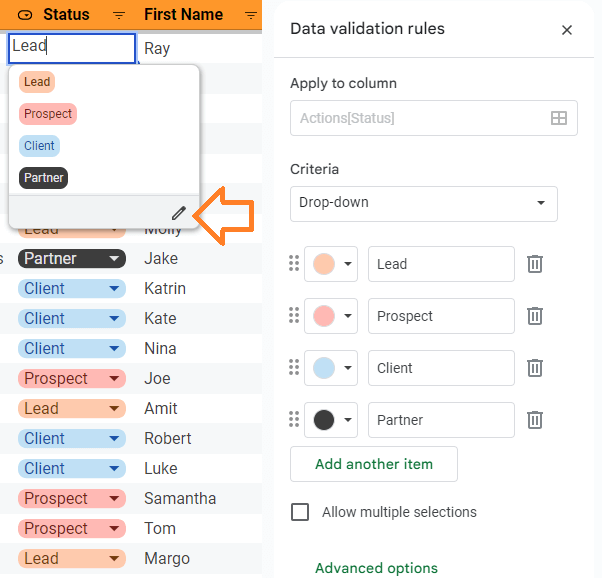
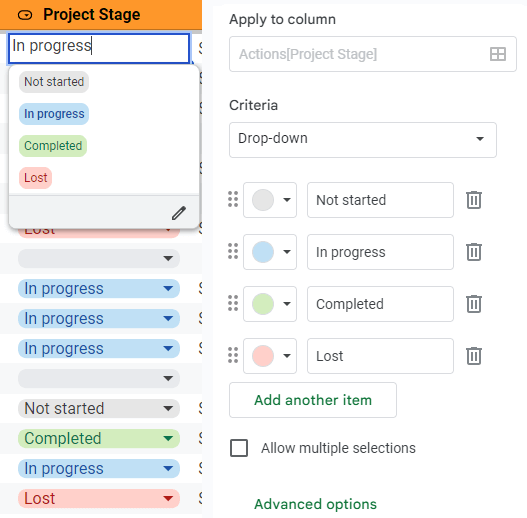
Contact Status is a way to segment your contacts into different sales stages:
You can customize Status labels by typing your own categories and choosing different colors.
First name, Last name, Organization, Email address, and Job titles are self-explanatory fields, so we won’t focus on them. However, with the phone number, you need to decide what format works best for your business.
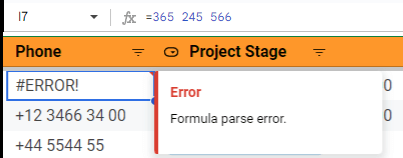
If you run a local business, then you don’t need an international country code for your clients’ numbers. If you run an international business and country codes are important, make sure to put an apostrophe (‘) before the plus (+).
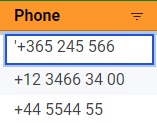
Otherwise, if you start your cell with the plus sign, Google Sheets will think you’re about to enter a formula and will return an error.
Depending on how comfortable you are with the sales terminology, you can refer to these as your sales deals or projects. Similar to Statuses, Stages are customizable. So if you want, you can change them to something that is more commonly used in sales:
You can adjust these stages to fit your sales process.
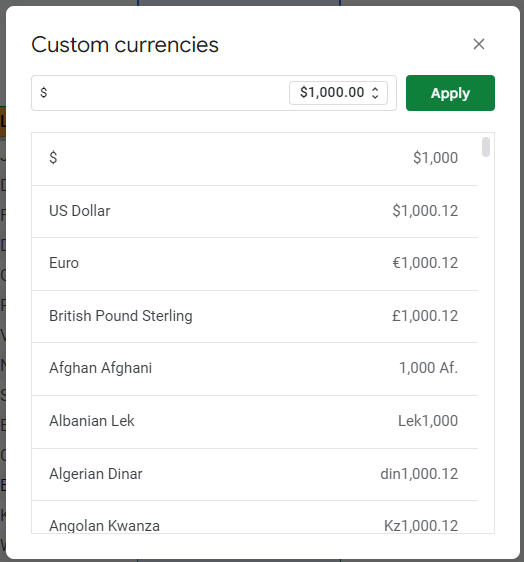
Project Value (or Deal Amount) can give you a good idea of how much you can earn for providing services to a client.
Depending on your location, you can change the currency in this column.
There are also four different views in this Google Sheets CRM. You can see all of your contacts in the general view or switch between three additional views.
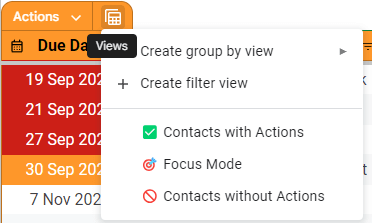
Views are saved filters—and you have the following options:
Google Sheets has macros and add-ons. While writing macros might not be on your list, you can benefit from a couple of add-ons. The good news is that some of them are free.
For example, if you know that you won’t be logging into your spreadsheet CRM every day, it’s easy to forget about some follow-ups. Then, you might be tempted to add them to your to-do app. However, keeping contact-related information in two different apps will only make it harder for you to centralize data. This is not efficient and leads to double entry.
It’s much better to add email reminders directly in your spreadsheet CRM by installing a free add-on.
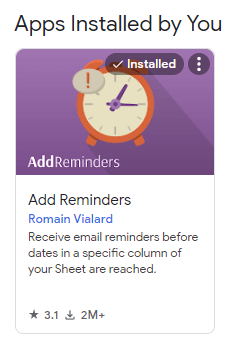
Since your Google Sheet is connected to your Gmail account, you’ll receive email reminders in your Gmail inbox. You can get emails one day before the due date of your Next Action.
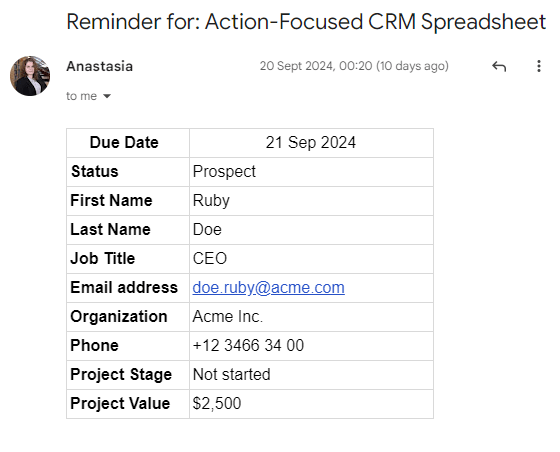
Please note that this is not applicable to Excel.
If none of the existing CRM templates look like a good fit (or if you prefer to build something of your own), here’s a step-by-step guide on how to create a CRM in a spreadsheet from sractch.
It’s a spreadsheet, so you can’t have an unlimited number of rows and columns. But just because you can add more doesn’t mean you should. Before creating your database in a spreadsheet, you need to know what you absolutely require to grow your business.
In some cases, you might not need phone numbers or job titles. It could be enough to have contact full names, email addresses, and LinkedIn profiles.
Avoid the temptation to add too much data. Collecting data you don’t use will only slow you down:
When planning the structure, choose the path of least resistance. You’re creating this template to make your life easier and track clients better—not to burden yourself with data entry.
Once you have the structure in place, it’s time to start filling out your spreadsheet.
It’s perfectly fine to start slow and add only a few contacts or opportunities at first. It’s also okay to keep gradually improving your CRM spreadsheet. If you set up a structure but notice things aren’t working as smoothly as you expected while filling it out, just make the necessary adjustments.
Spreadsheets can become overwhelming pretty quickly, so try to keep things tidy from the beginning. Use short titles for columns and avoid putting too much text in the cells. If you need to elaborate on something, consider adding a comment instead.
The less cluttered your spreadsheet is, the easier it will be to work with.
The traditional way of creating a CRM spreadsheet is outdated. It typically sorts contacts by company name or contact name and it’s not the most effective way to manage a client database.
Your database is a money-generating machine. Not surprisingly when lawyers retire, they often sell their book of business (their contact records). No matter what industry you’re in, you can treat your database as a business asset too.
Instead of sorting your contacts alphabetically, add follow-up reminders to your spreadsheet. Apply conditional formatting to highlight overdue tasks, so they stand out on your priority list. Use colors in moderation. Too colorful spreadsheets look overwhelming and are difficult to read.
To grow your business, you don’t need a lot of charts or complicated Excel formulas. However, having a few simple graphs for an overview can be helpful. Ideally, these should be easy to interpret.
Some examples of graphs you can include in your CRM spreadsheet:
To keep your CRM spreadsheet lean and agile, don’t add too many charts. Its purpose is to help you manage your database better and grow your business—not to create fancy visualizations.
You can also freeze the header row for easier navigation, so it stays visible even when you’re scrolling through your contact list.
This step is especially important if you’re using an Excel file instead of a cloud-based spreadsheet on OneDrive or Google Drive.
Having CRM in a spreadsheet is simple and affordable.
If your CRM is stored in the cloud, backups will be done automatically. Otherwise, make it a habit to create backups of your spreadsheet regularly. This will help prevent data loss and allow you to revert to an earlier version if needed.
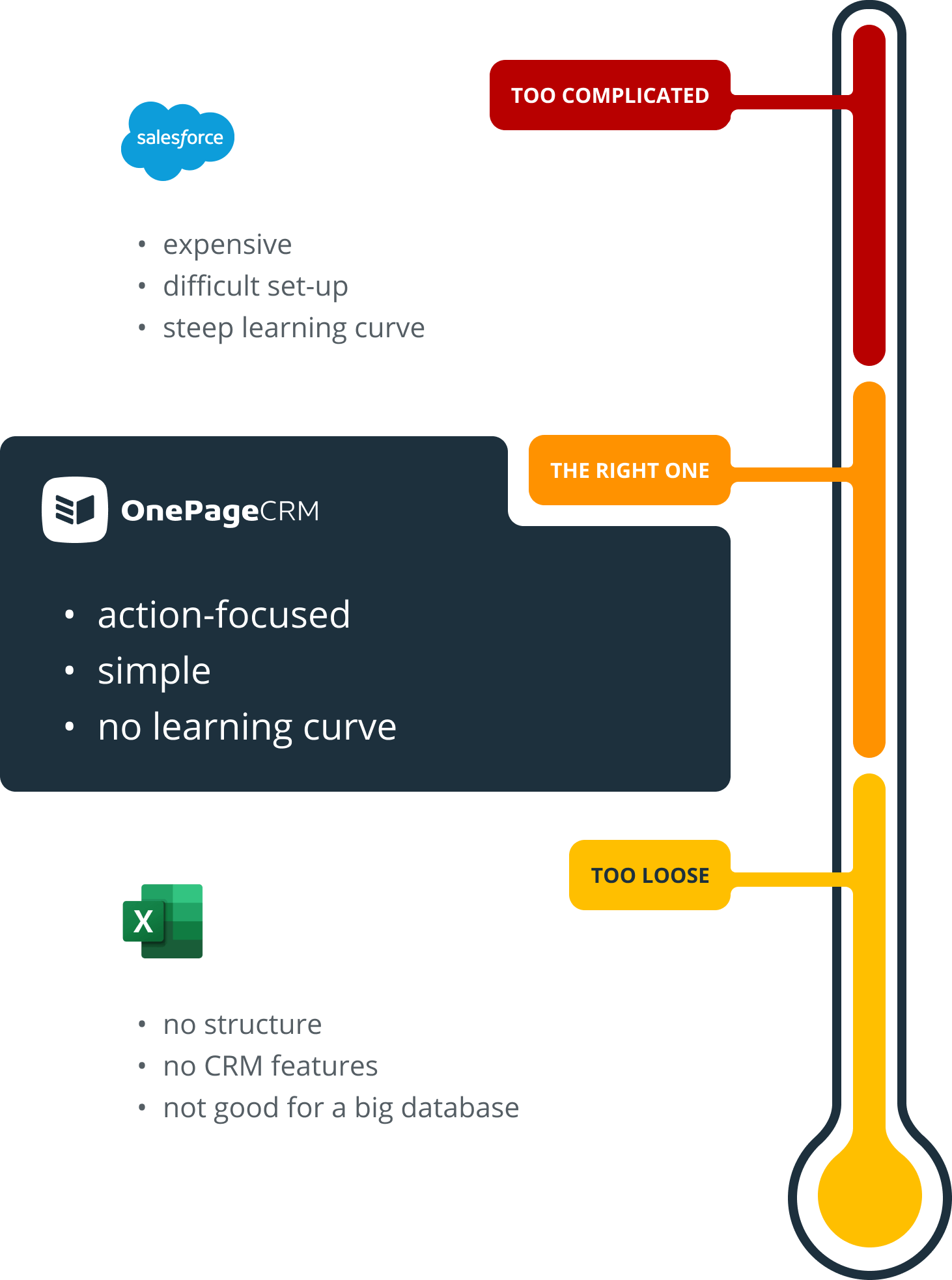
However, there comes a time when your business outgrows Excel and Google Sheets.
As your client database grows, the number of rows and columns in your spreadsheet increases too, which leads to several problems:
At some point, your business will need a proper CRM solution rather than a spreadsheet template.
Recognized by Forbes Advisor as one of the best simple CRMs in 2024, OnePageCRM stands out for its ease of use and dynamic nature. It was built for small and medium-sized businesses making it a perfect tool for anyone looking to grow their sales.
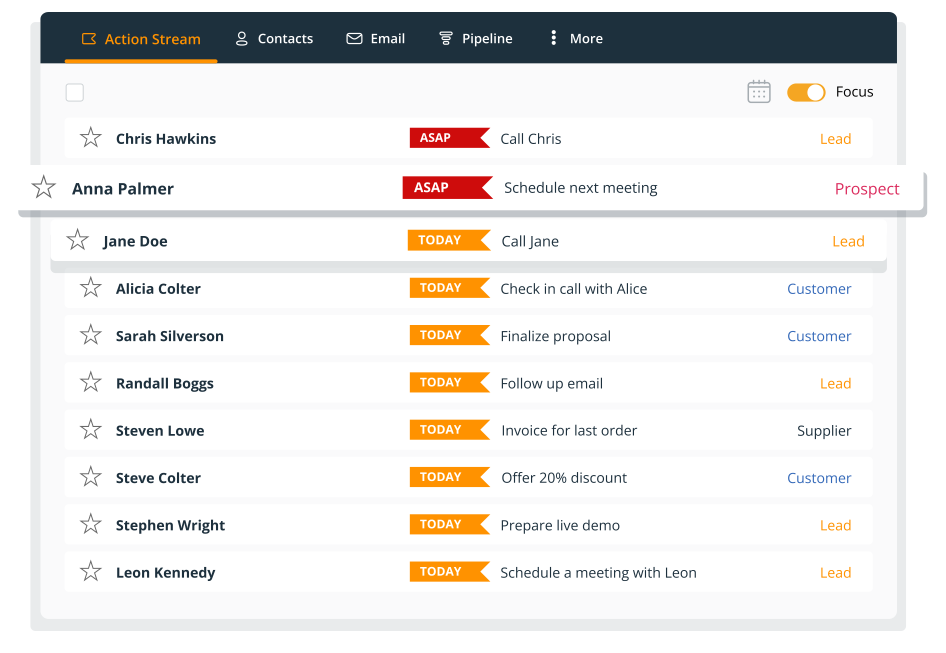
It’s also the only CRM that has the Action Stream and sorts your contacts not only by alphabet but also by the urgency of follow-up reminders assigned next to them.
If you feel that your business has outgrown spreadsheets, it might just be the right time to switch over to an action-focused CRM.