


![What Is CRM? Definition & Types [CRM Guide For Beginners]](https://www.onepagecrm.com/wp-content/uploads/what-is-crm-blog.png)
Top 7 Free Notion CRM Templates
Samuel Oyebode
January 22, 2026
21 min read


Spreadsheets are one of the most versatile tools out there.
That’s why, when one starts a business, the first thing that often comes to mind is: “Let’s use spreadsheets as a CRM”.
In this post, we compare 12 free spreadsheet CRM templates in Google Sheets and Excel. We provided links to download each of them as well as screenshots, so you don’t have to spend too much time testing every CRM spreadsheet template (unless you want to).
There is a wide variety of free spreadsheet CRM templates.
However, most templates are not completely free; you need to enter your email address to get the file.
We’ve downloaded and tested them all, so you can get a quick overview before deciding whether it’s worth sharing your email address in exchange for these templates.
While not all of these spreadsheet templates can be classified as “Best” or “Top”, this list gives you a good overview of what is out there.
Here are the 12 most popular free CRM templates in Excel and Google Sheets.
Static databases don’t make your business grow. But the good news is that even a spreadsheet can be dynamic.
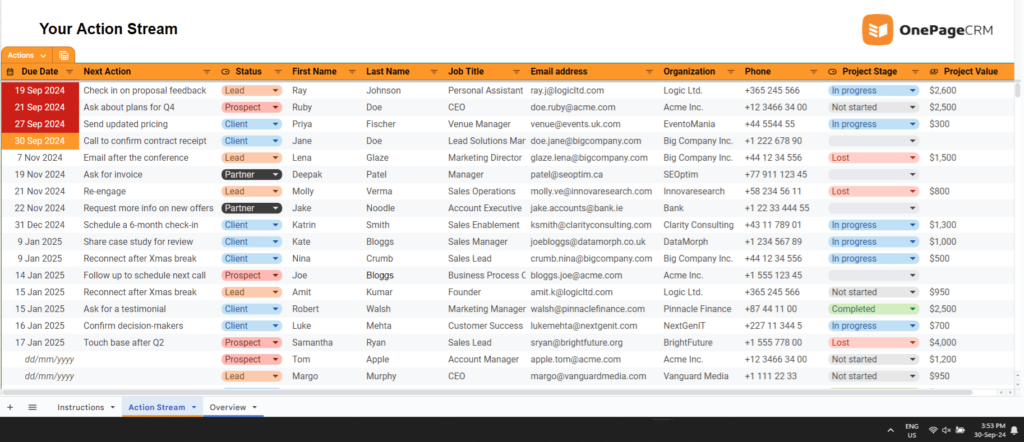
This free CRM spreadsheet has only one tab for you to fill out.
Every contact in this template has a follow-up reminder. So you can sort contacts by urgency:
This way, it’s easy for you to prioritize what needs to be done first.
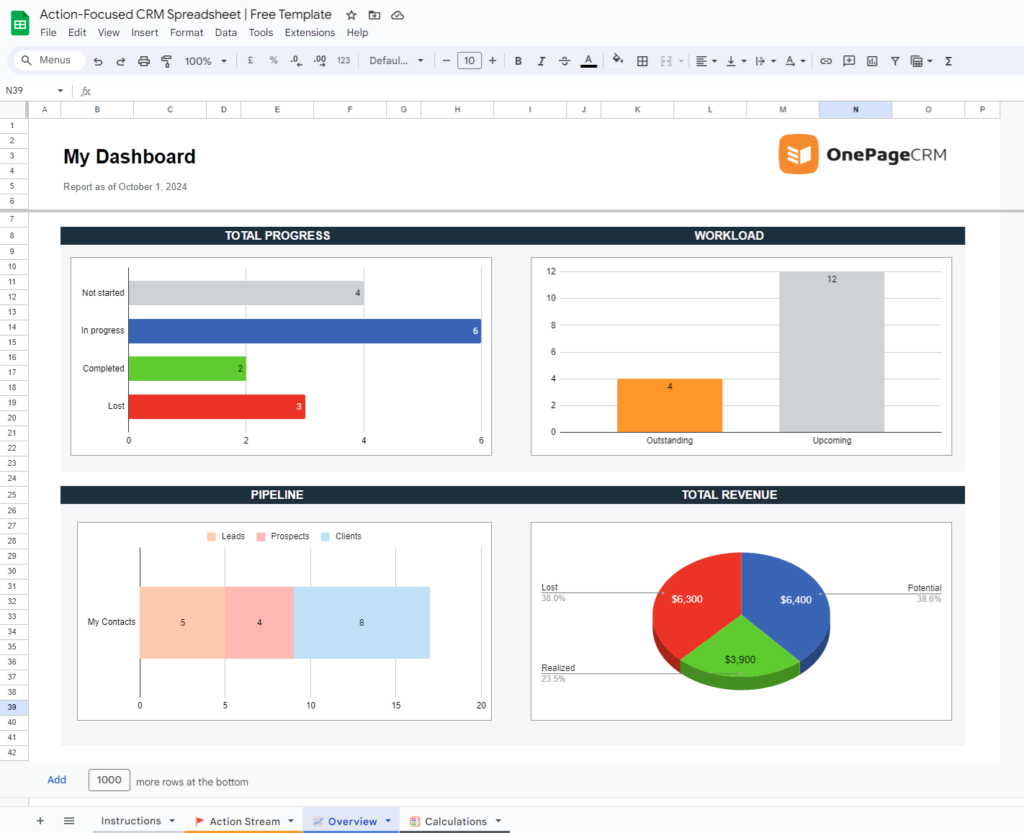
What stands out in this CRM spreadsheet?
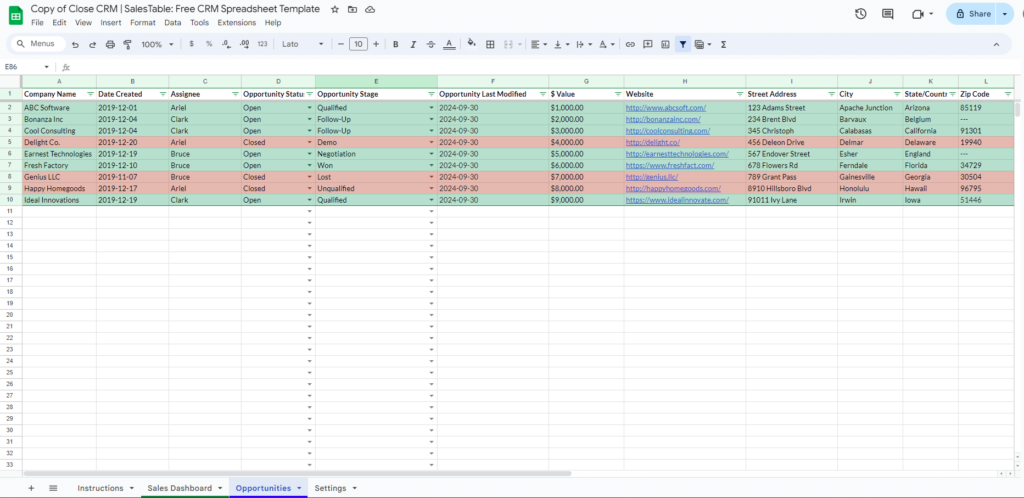
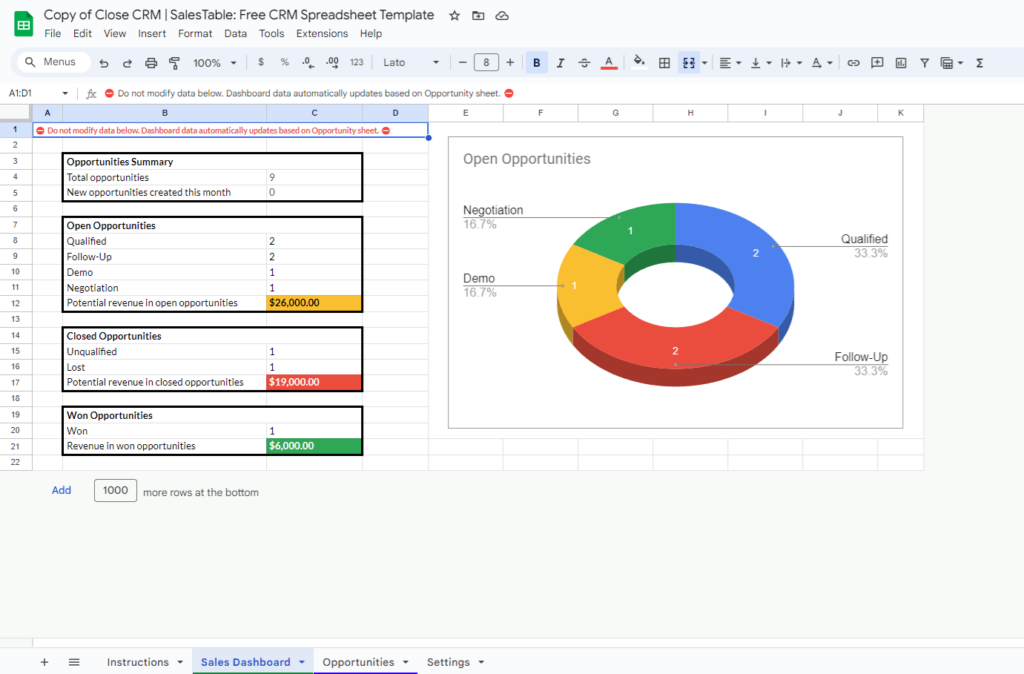
The team at Close CRM created a very simple CRM template. It is centered around Sales Opportunities, so when you open it, the first column you see is the company name (also often referred to in sales as the Account).
These opportunities are then highlighted in green or red (if a deal is marked as lost). This CRM template also includes a simple dashboard with a summary of all sales opportunities.
What stands out in this CRM spreadsheet?
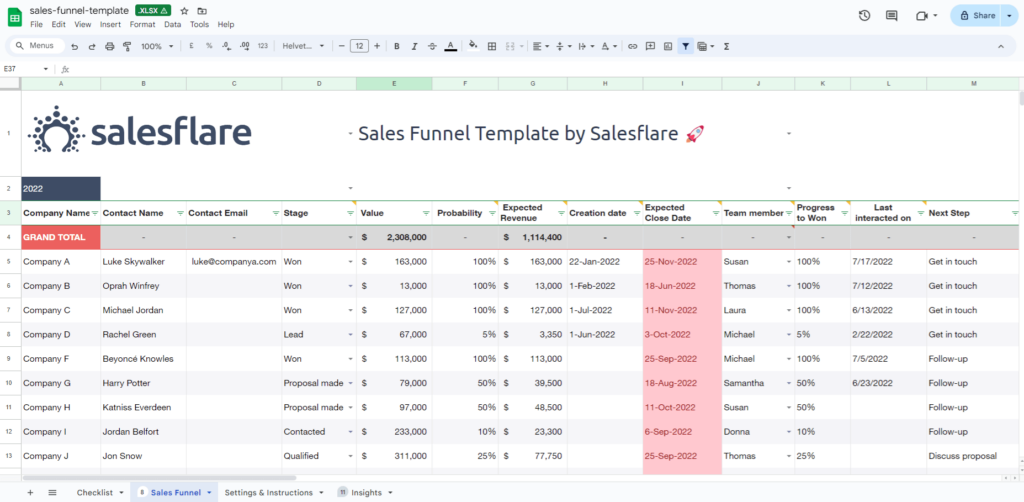
Salesflare has another spreadsheet CRM designed specifically for sales. It’s much more comprehensive than the Close CRM template and includes columns for the next steps and the last date of interactions.
It is created for B2B sales. That’s why the company name is the first column on the spreadsheet. Similar to the CRM spreadsheet by Close, this template provides a good overview for sales managers but doesn’t make the day-to-day tasks of a salesperson much easier.
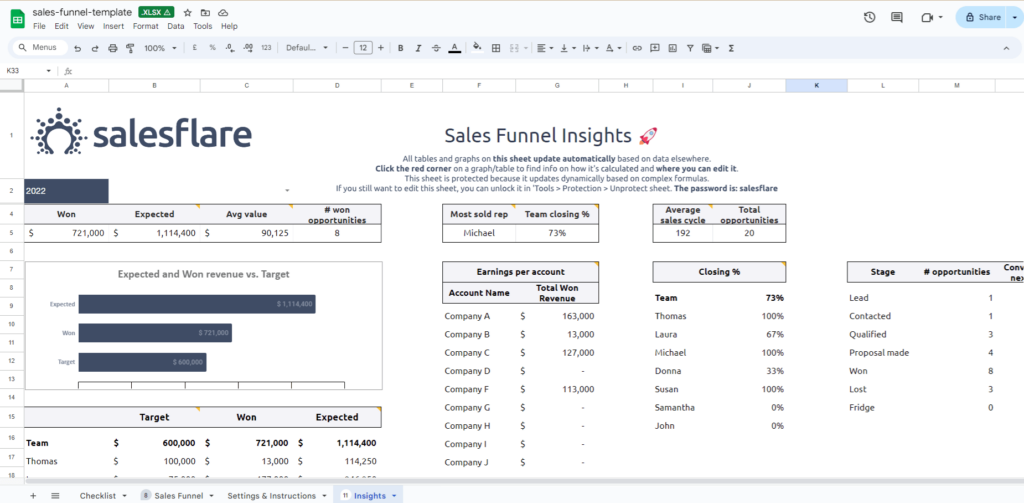
If you prefer video content, Salesflare also has a short video tutorial showing in detail how this CRM template works and can be used:
What stands out in this CRM spreadsheet?
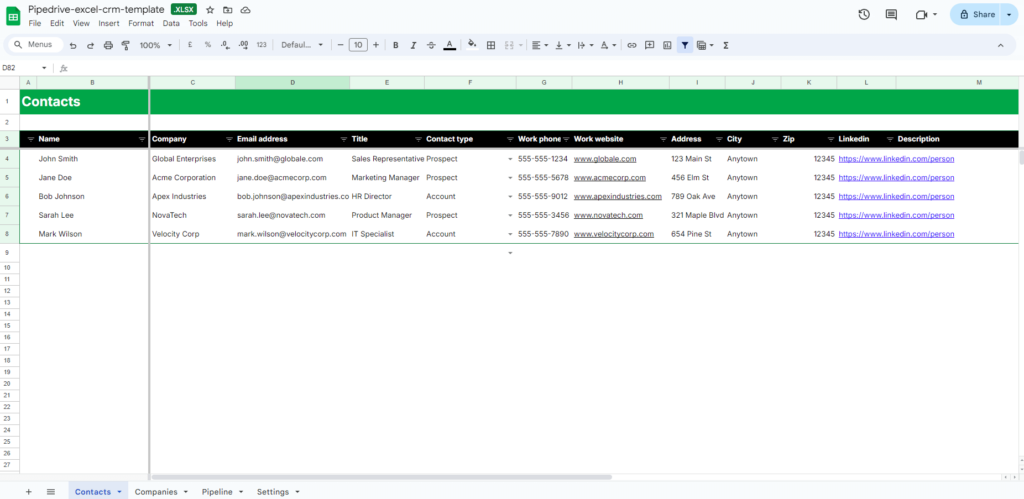
Pipedrive’s spreadsheet template is very similar to the one from Close CRM. However, filling out this template is more time-consuming.
Unlike Close CRM, Pipedrive divides data into three separate tabs: Contacts, Companies, and Pipeline. They are not interlinked with formulas, making it too time-consuming for a small team to keep switching between tabs and filling them out.
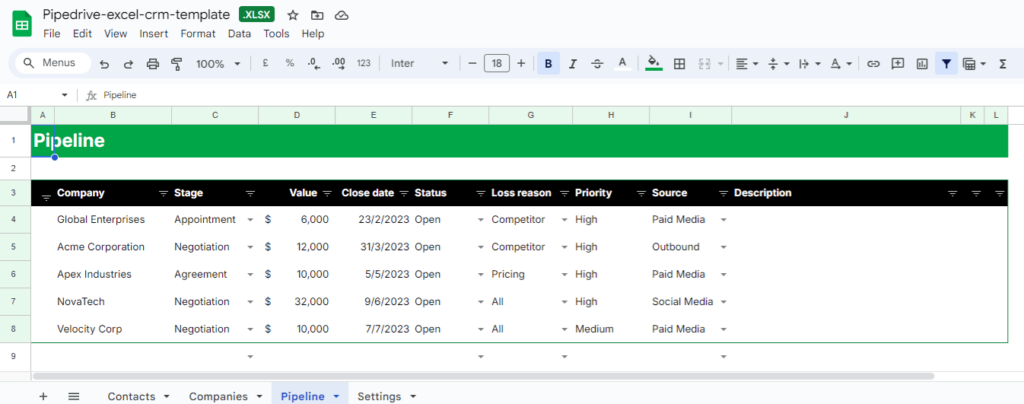
It’s also worth noting that the spreadsheet doesn’t have any charts or a dashboard.
What stands out in this CRM spreadsheet?
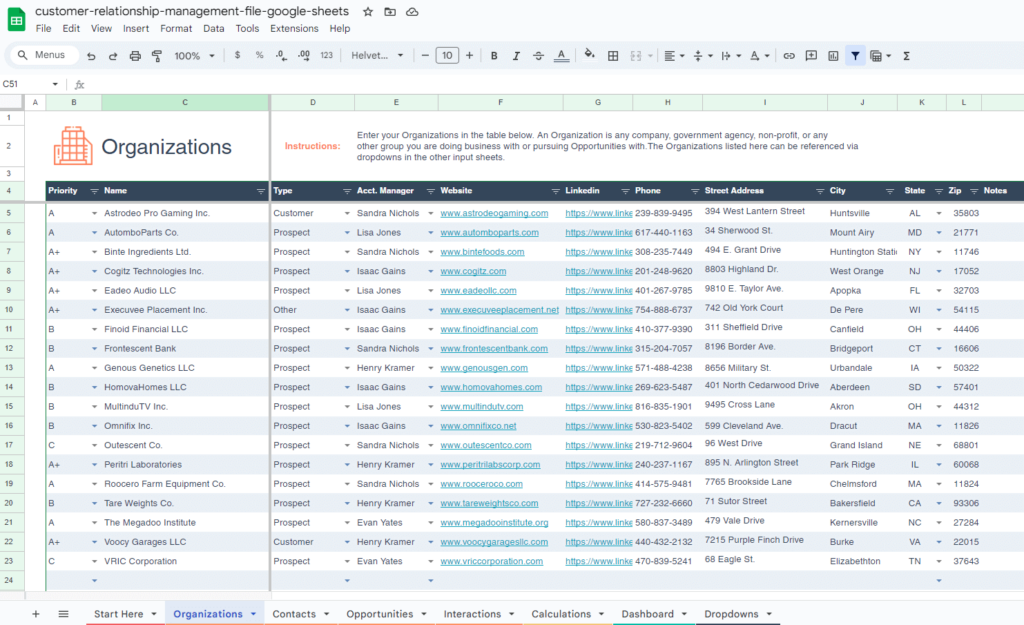
You’ve probably heard of HubSpot—it’s a behemoth in the CRM industry. They offer a lot of free resources, including a spreadsheet CRM template.
Since HubSpot is designed for large organizations, their CRM template reflects this too. It includes different tabs for Contacts, Organizations, Opportunities, and even Interactions (4 tabs!). Unlike Pipedrive, HubSpot uses a few formulas, making data entry a bit faster. However, the amount of data required for this template is still too extensive. If you’re looking for something simple and efficient, this spreadsheet CRM might not be the best fit for you.
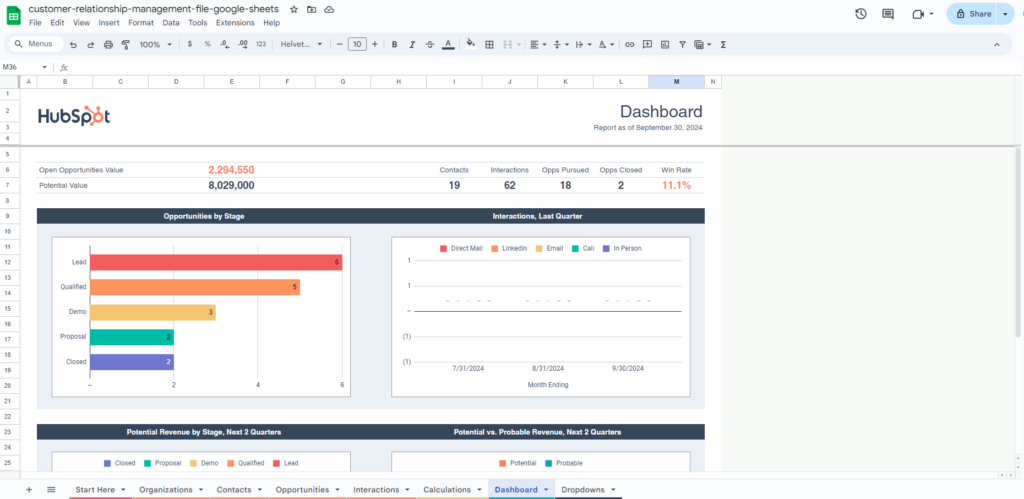
On the bright side: If you do need to fill out that many fields, it might be a sign that you’d be better off looking for a proper CRM software rather than a spreadsheet template. HubSpot’s template can act a CRM litmus test.
What stands out in this CRM spreadsheet?
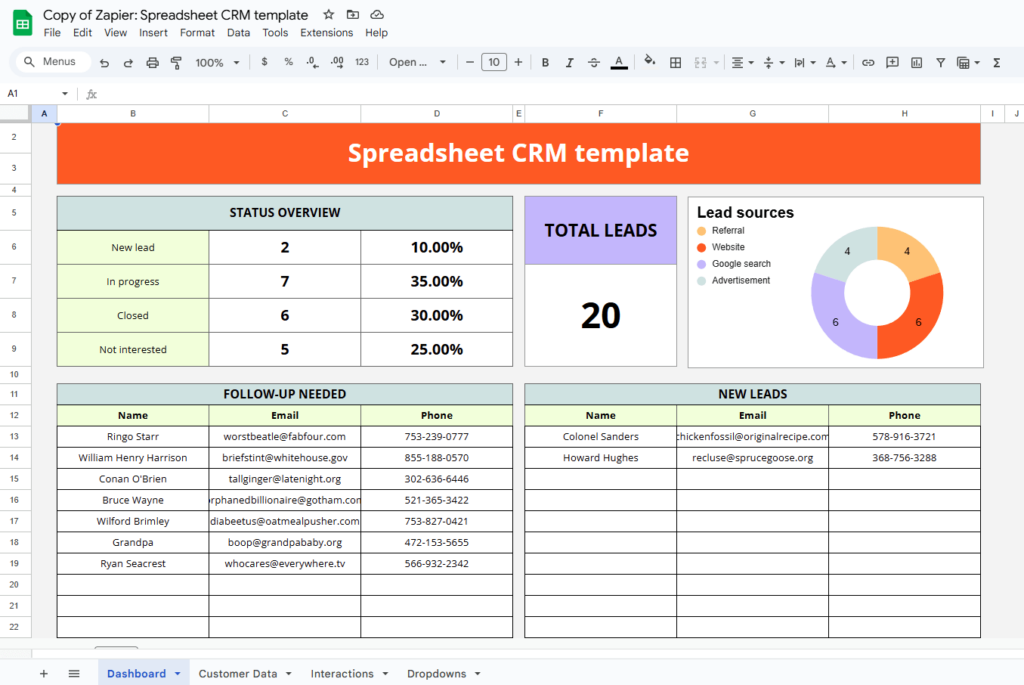
Contrary to other free CRM spreadsheets, Zapier’s template has a Dashboard at the very beginning so you can see at a glance what needs to be done for your business and get a quick overview of your progress.
There are also tabs for Customer Data (a list of contacts), Interactions (sorted by the date) and Dropdowns (for customization). Due to the lack of formulas and simple automation, this CRM template requires a lot of admin work. For example, if you’d like to keep track of your interactions, then you need to fill them out twice: in the Dashboard, in the Interactions sheet, and in the Last contact column in the Customer Data sheet.
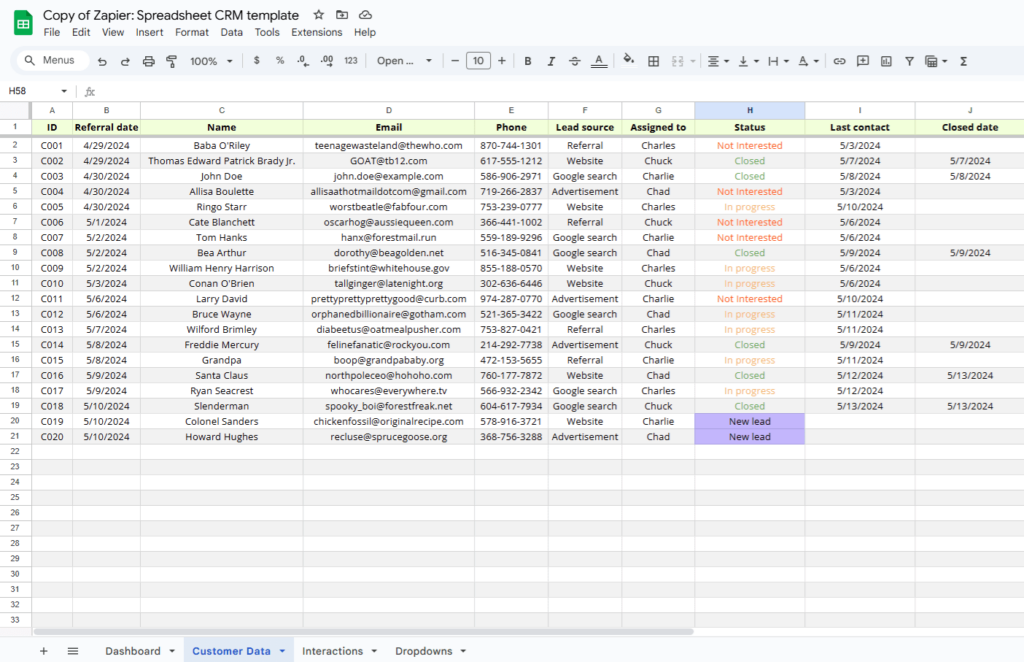
If you decide to go ahead with this CRM template, you can also combine Customer Data and Interactions sheets in one sheet. This can decrease the amount of data entry.
What stands out in this CRM spreadsheet?
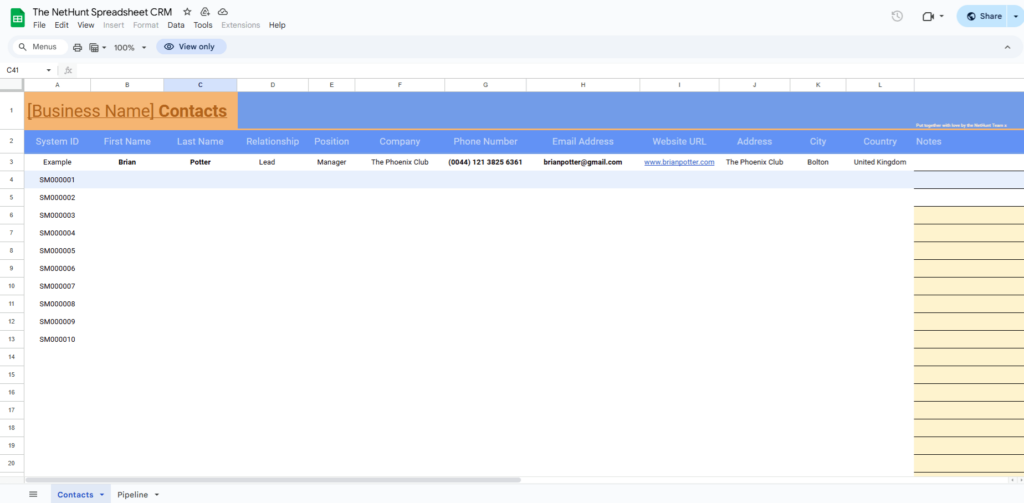
NetHunt also has a CRM template in Google Sheets. It has only two tabs: Contacts and Pipeline.
This CRM spreadsheet has a minimum amount of dummy data making it easier for you to fill it out. It also has some basic color style but it lacks slightly more sophisticated formulas or formatting.
On the bright side: Since there are only two sheets, there’s not much you need to fill out.
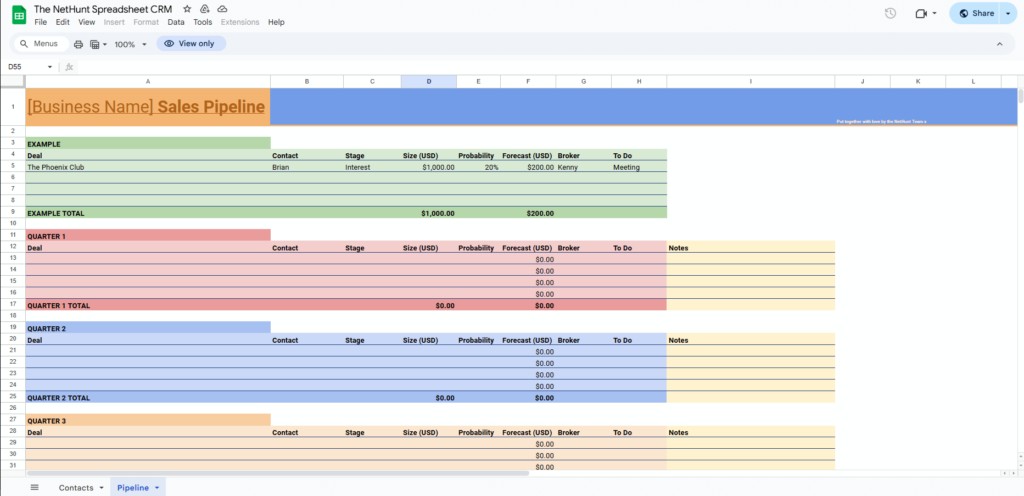
This CRM template has a separate sheet for the Pipeline, which is good. However, it doesn’t have a proper visualization of this pipeline. Since there are no formulas, you’ll need to input some data twice: once in the Contacts sheet and then in the Pipeline sheet.
What stands out in this CRM spreadsheet?
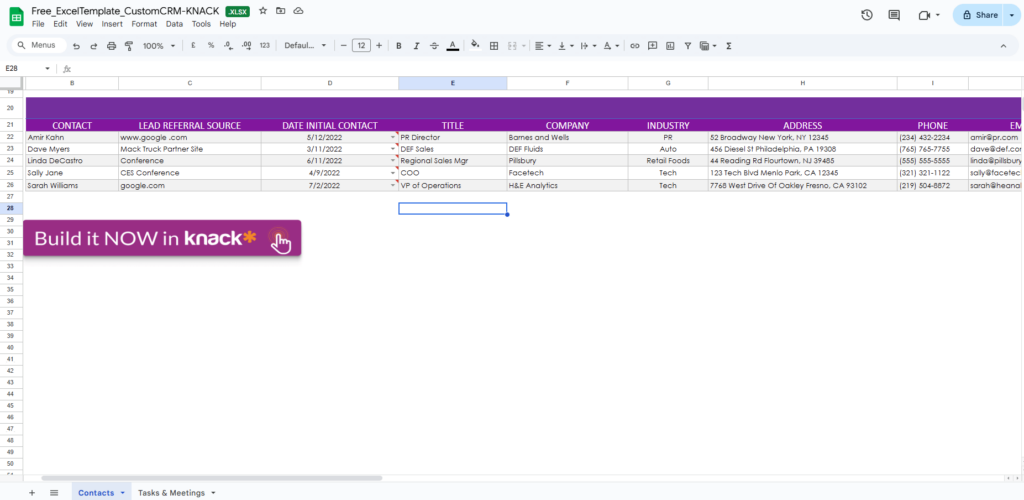
Knack has built its own CRM template in a spreadsheet. It is available only in Excel but you can also upload it to your Google Drive to use the template in Google Sheets.
Knack is a no-code application development platform, with Airtable being their most notable competitor. The spreadsheet CRM that they offer on their website doesn’t look like an end product and has several CTAs to use Knack instead.
For example, the Contacts sheet has 20 different columns, including Project Type, Project Description, Proposal Due Date, Background Info, and so on. This makes it rather time-consuming to fill out this spreadsheet, let alone use it as a flexible and agile alternative to a simple CRM system.
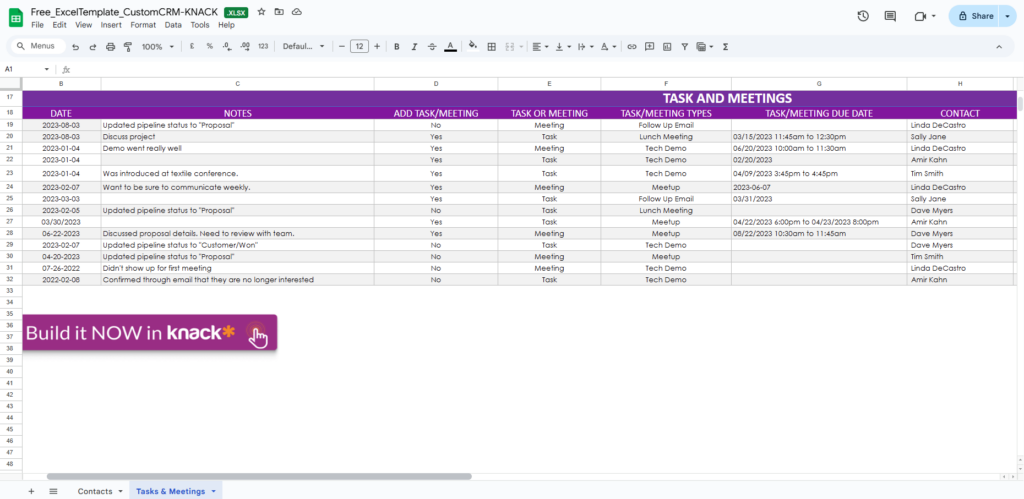
While Knack’s template has a separate tab for Tasks & Meetings, this sheet has 10 columns (on top of 20 columns in the Contacts list), which makes it much less dynamic than an Action Stream.
What stands out in this CRM spreadsheet?
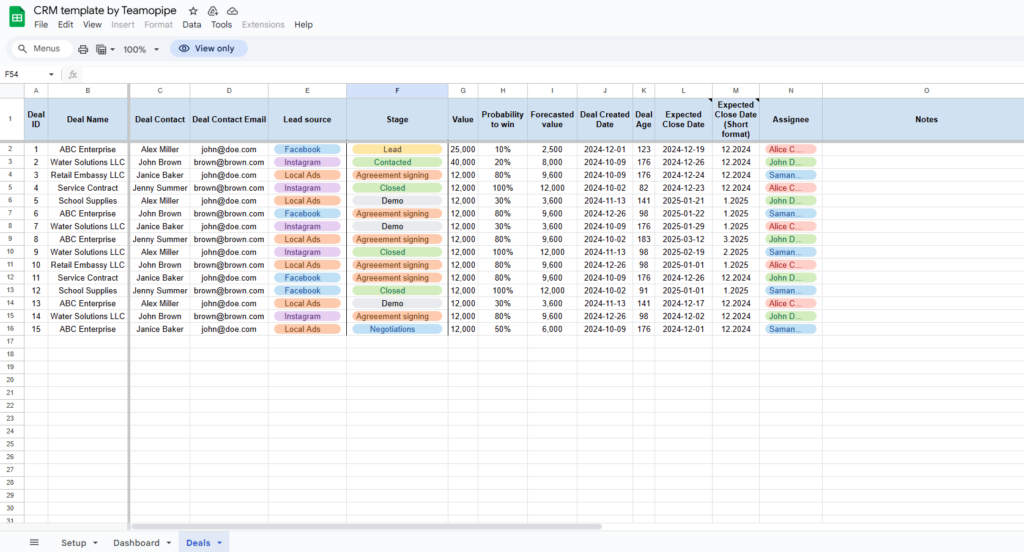
Teamopipe built another free CRM spreadsheet in Google Sheets. Teamopipe is a Gmail CRM, and it’s deal-centric, so their CRM template is deal-centric too.
Similar to OnePageCRM’s template, it is very simple and has only one tab for data entry, Deals. It’s color-coded and has a few formulas. For example, this template automatically calculates the age of the deal. Probability to win is also an automatic VLOOKUP formula.
However, this spreadsheet is more suitable for a deal-focused small sales team. It is heavily focused on the deals rather than specific sales actions and interactions.
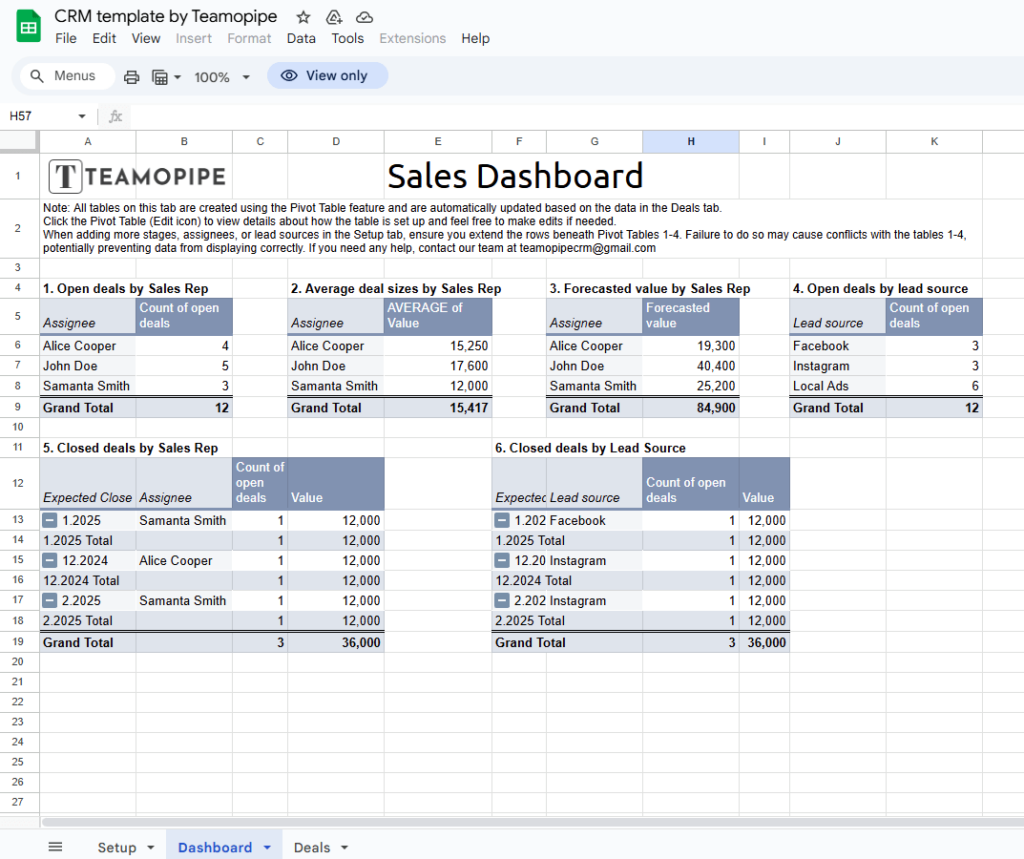
Their Sales Dashboard is quite straightforward, summarizing the most important data points.
What stands out in this CRM spreadsheet?
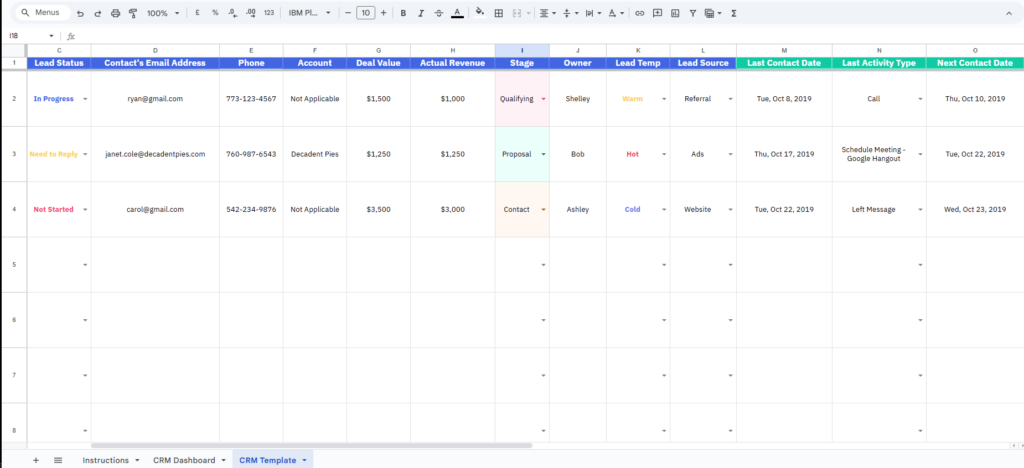
ActiveCampaign is a marketing automation tool, but they also built a free CRM spreadsheet.
They also have a quick video overview of this free CRM spreadsheet, so you can have a look at what you are signing up for before downloading it.
What stands out in this CRM spreadsheet?
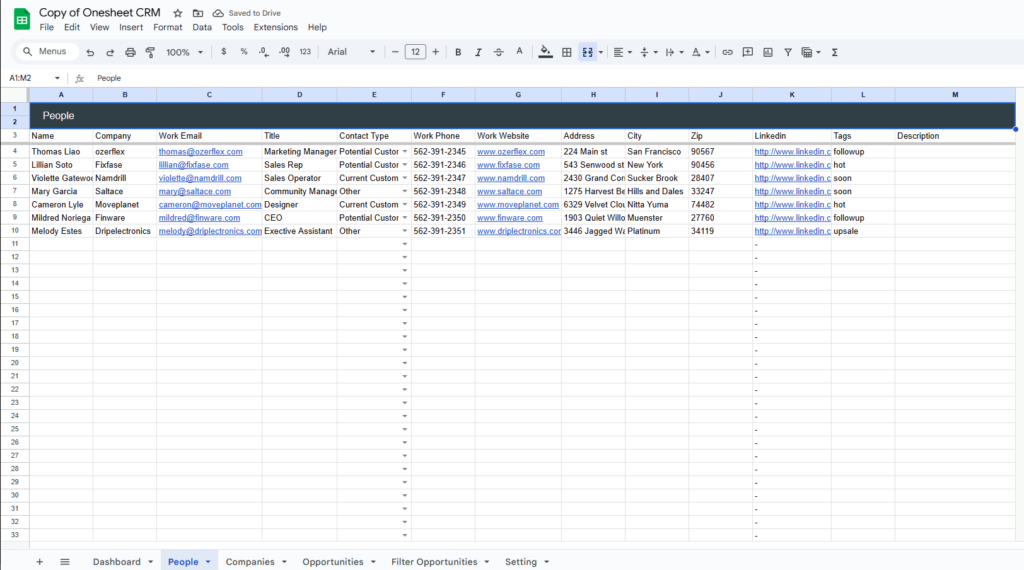
Onesheet CRM has a whole website dedicated exclusively to their free and simple CRM template in Google Sheets.
It is gated, so you’ll have to fill out a web form to receive a link to the spreadsheet. Once you fill it out, you’ll get an email from Copper CRM (check your spam folder).
Ironically, despite its name, Onesheet CRM has 6 Sheets.
It also has a very simple dashboard.
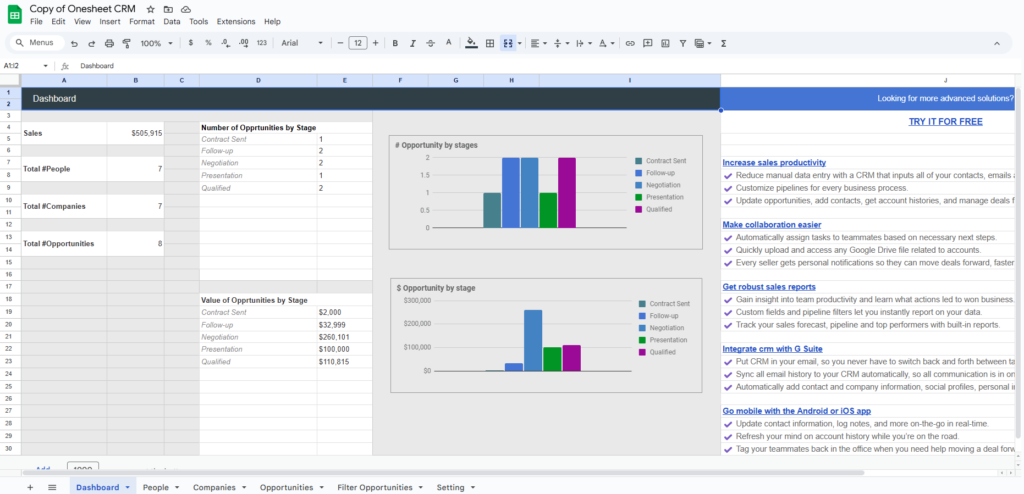
What stands out in this CRM spreadsheet?
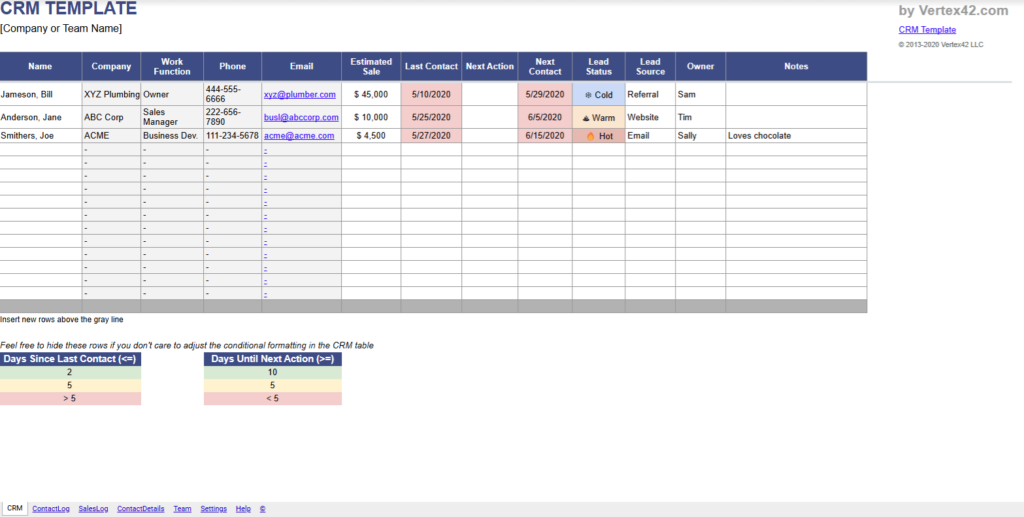
Vertex42 built a CRM spreadsheet for both Google Sheets and Excel. You can download each version for free.
Vertex42 created a thorough Google Sheets Tutorial for Beginners. Even if you’re not looking to use their template but you’re new to the spreadsheet world, the video can introduce you to many important concepts, such as formulas, cells, ranges, rows, and many others.
What stands out in this CRM spreadsheet?
An Excel or Google Sheets CRM is essentially a spreadsheet template used to track interactions with customers and leads. CRM stands for Customer Relationship Management, and if you’d like to dive deeper into CRMs, we have a comprehensive article on this topic:
However, despite its name, a spreadsheet CRM isn’t really a CRM at all—it’s just a template. Just as you can create a habit tracker, an event calendar, or a Kanban board in a spreadsheet, you can also create a contact database.
So while a spreadsheet CRM has many benefits, it also has a few limitations.
Let’s start with the benefits first.
Even if a spreadsheet CRM template has limitations, there are a few good reasons why many small businesses rely on spreadsheets so much and often use them as their first CRM.
No matter what industry you work in, you are probably familiar with Excel or Google Sheets. When someone thinks about organizing or managing things, a spreadsheet is usually the first thing that comes to mind. They’ve become an intrinsic part of many business activities—and contact databases are no exception.
Even if you don’t have an active Microsoft 365 subscription, you can still use Google Sheets for free. Both Excel and Google Sheets are quite accessible and widespread. Besides, you can access them from any device as long as you have an internet connection. Since Microsoft has OneDrive, you can have your Excel file in the cloud too.
Besides, spreadsheets have a community of loyal fans and a large pool of users. So you won’t have a hard time finding free templates for any use case.
There’s beauty in creating something that is your own. With their formulas, graphs, rows, and columns, spreadsheets offer a vast canvas for creativity. You can structure them any way you want and add different colors to highlight the information that is most important to you.
A spreadsheet CRM does require some sort of learning and adapting. But in general, spreadsheets are very easy to use, both in Excel and Google Sheets. It’s also simple to export data in . xlsx or .csv formats and then upload it to another software. This means that you can easily retrieve your data in the future and import it into a different system.
While having your CRM in Excel or Google Sheets has undeniable benefits, it doesn’t come without risks. Like any other tool, a CRM spreadsheet has its drawbacks.
Spreadsheet CRMs are not built for collaboration. Google Sheets have made it easier to collaborate on spreadsheets, but in general, the more complicated your project is, the harder it is to work together.
It’s one thing to collaborate on drafting a proposal in a Google doc; it’s quite another to have five members constantly updating your business database. There’s no version control and notes can become clunky.
So in some sense, one could say that spreadsheets are better suited to single users.
This drawback is closely connected to the one above.
Since spreadsheets are not designed for collaboration, they also struggle to support business growth. As your database grows and you get more clients, a spreadsheet CRM may no longer meet your business needs.
At some point, you might want your CRM to integrate with other tools, like your accounting software, or you may wish to have a Trello-like experience, dragging and dropping sales opportunities from one stage to another. Spreadsheets don’t offer that much flexibility.
Spreadsheets can also raise security concerns. Keeping your client data in a spreadsheet might not be ideal. Once you upload it to OneDrive or use Google Sheets, you lose control over what can happen.
An accidental share or human error might result in leaking your contacts to the world. Besides, neither Excel nor Google Sheets were originally designed for storing sensitive private data, so it makes sense that a spreadsheet won’t have the same security levels as dedicated CRM solutions.
When looking for a free CRM template, should you use a CRM spreadsheet in Google Sheets or a CRM in Excel?
The answer is: It depends.
Both Google Sheets and Excel are spreadsheet tools. If you’re used to one, you’ll easily learn how to use the other. But they have a few differences that can be deal-breakers, depending on what you’re looking for in your free CRM.
For example, one of the most notable differences is that Excel is part of Mircosoft’s subscription, so although Excel templates are free to use, the software itself is not free.
| CRM in Google Sheets | CRM in Excel | |
| Price | ✅ Free | ❌ Not free |
| Platform | Windows, Mac, Linux | Windows and Mac |
| Auto version control | ✅ Yes | ❌ No (unless on OneDrive) |
| Add-ons | ✅ Yes | ✅ Yes |
| Cloud hosted | ✅ Yes | ❌ No (unless on OneDrive) |
| Real-time collaboration | ✅ Yes | ❌ No (unless on OneDrive) |
| Free templates | ✅ Yes | ✅ Yes |
| Offline mode | ✅ Yes | ✅ Yes |
In general, having a CRM in Google Sheets seems like a better option, but here are a few exceptions worth pointing out:
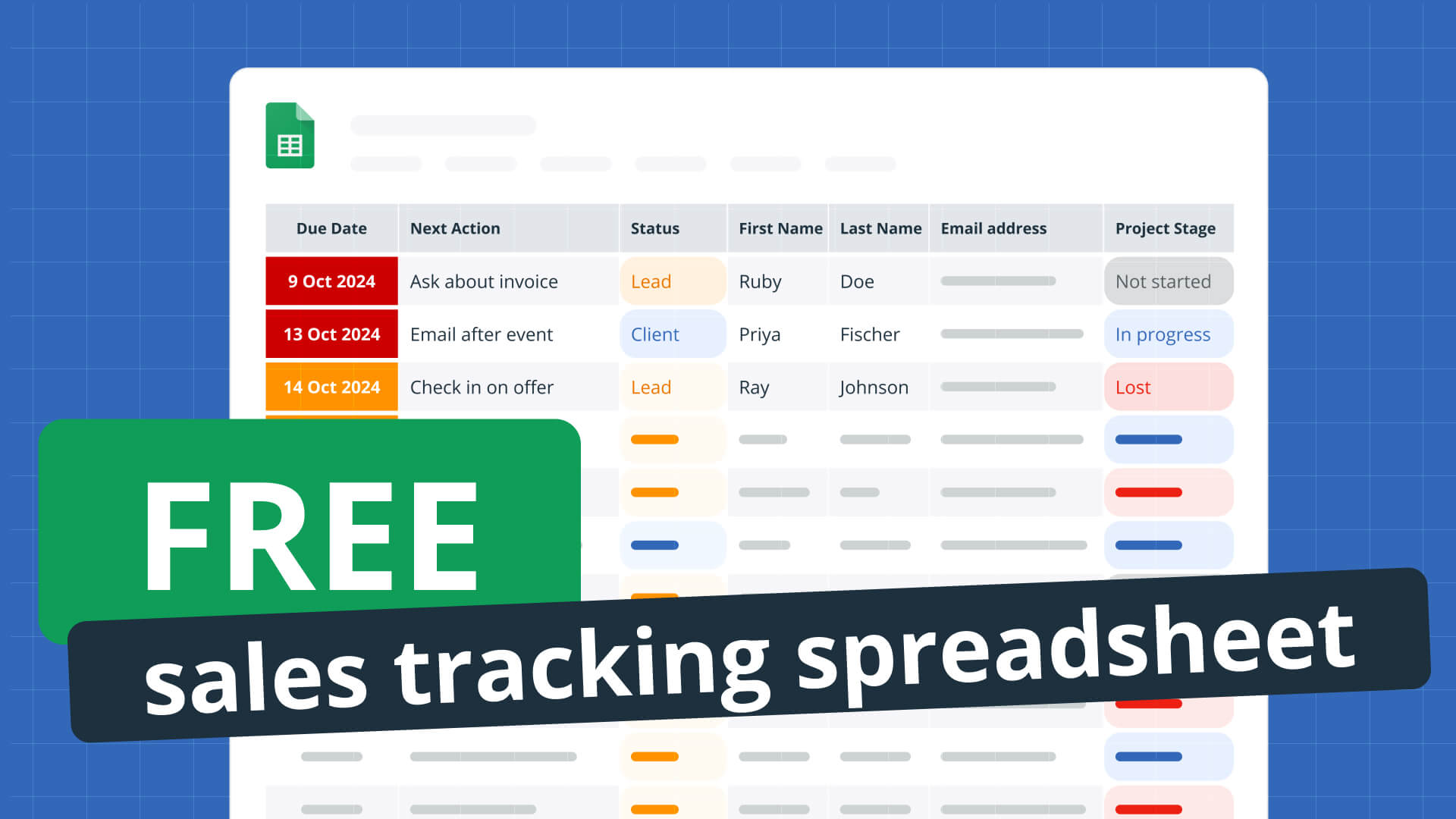
Comments are closed.




I just found your free one page CRM. I have struggled for fifteen years to find a simple solution, one step above a physical binder with tabs. You have changed my life. THANK YOU
Hi Richard,
Thank you for sharing your feedback with us! We are very happy to hear you enjoy using the free CRM spreadsheet. 🙂 It’s indeed much more flexible than a physical binder.
Kind regards,
Anastasia
Thank you, Anastasia. This template is invaluable. I like the action-oriented approach. And it fits perfectly with my humble beginnings working with a CRM.
Btw. I asked ChatGPT to find me CRMs for Google Sheets 🙂
Hi Roland, thank you for sharing your feedback! 😊 I’m glad to hear the template perfectly fits your current needs. Our customers love OnePageCRM for its simplicity and action-focused approach, so we thought we’d re-create its Action Stream in Google Sheets. This way, anyone who’s at the very start of their CRM journey can still enjoy an action-focused approach.
P.S. ChatGPT is becoming a go-to tool for searching! 😁
Kind regards,
Anastasia