
Adding leads to your CRM is easy. Following up with them on time is the hard part.
With other work going on, it’s easy to lose track of who you planned to follow up with and when. Some of these follow-ups get pushed back, and others end up not happening at all. Either way, you could lose a potential customer.
That’s where CRM task management comes in.
CRM tasks make it easier to keep track of your follow-ups and get to them on time.
In this article, you’ll learn what CRM tasks are, why they matter, and what to look for in a CRM. We’ll also explore popular CRM task management examples and how OnePageCRM helps you manage CRM tasks.
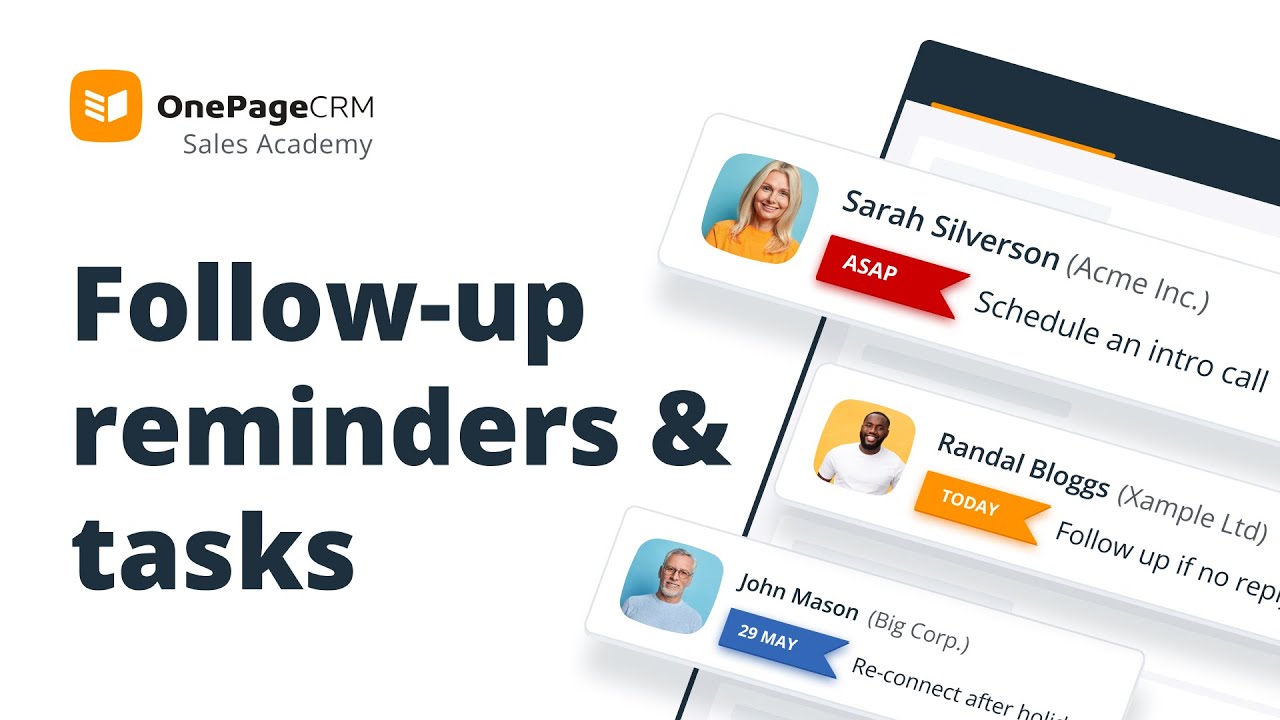
What are CRM tasks?
A CRM task is a to-do item or follow-up that’s usually attached to a contact in your CRM. It has a short description and a due date, so you can quickly see who to follow up with, what to do, and when.
Keep in mind that some CRM tasks are more pressing than others. That’s why, when you have several of them to work on, they’ll typically be listed by how urgently you need to deal with them.
Here are some common examples of CRM tasks:
- Call a lead tomorrow
- Call a prospect the day after a demo
- Send a proposal by Friday
- Email a quote to a prospect
- Send a contract for signature
- Check in with a new customer 30 days after onboarding
- Ask a happy customer for a referral
- Reconnect with a quiet prospect in three months
Some CRMs call these tasks, while others call them activities or reminders. In OnePageCRM, they’re called Next Actions.
Benefits of CRM task management
A task list is easy to start. Keeping it useful takes a bit more effort, but that effort usually pays off. Here's what good CRM task management gives you:
- Fewer missed follow-ups: Every task is tied to a contact in your CRM and has a due date. So, it’s always clear what action you need to take and when.
- Faster replies: Leads who hear back quickly are more likely to stay interested. CRM tasks help you respond quickly while the conversation is still warm.
- A clearer view of your day: You can see which tasks are urgent, which ones are late, and which ones can wait. So, you don’t need to make your own list and manage it on the side.
- Context in one click: Open a task, and you see the contact’s full history in one place. That includes their past emails, calls, notes, deals, and more.
- Easier handovers: A teammate can take over a task and pick up where you left off, because the full history is in the CRM.
- Deals that keep moving: When your CRM contacts have a task or next step, sales opportunities are less likely to get stuck.
Key features of CRM task management
Not every CRM handles tasks the same way. When you compare options, look for these seven features.
Links to contacts and context
A task on its own is just a line of text. Something like “Send quote” doesn’t tell you who the quote is for, what you agreed on, or how big the deal is. But link the task to a contact, and you’ll see all the emails, calls, notes, deals, and other activities related to it.
Look for a CRM that attaches every task to a contact record. That way, you won’t need to dig through your inbox to remember where things stand. And if a teammate takes over the task, they’ll be able to figure out what happened before and what to do next with little to no effort.
Here's how this looks in OnePageCRM:
Quick due dates
Every task should have a due date, and adding one should be quick and easy.
Choose a CRM that lets you set due dates using shortcuts like “Today,” “Tomorrow,” or “In three days”. It should also let you pick your own date and time for deadlines that aren’t up to you, like a contract renewal or a client’s return from a trip.
That being said, you won’t always know the due date when creating a task. For example, you might need to send a case study but aren’t sure when it should go out. In situations like this, you need a CRM that lets you park the task until you have a date.
Prioritization
If you have a long list of people to follow up with, it makes sense to start with the most urgent ones. But that’s hard to do when the list is sorted by name or by the date you added each task, because the urgent ones end up mixed in with the rest.
So it’s worth choosing a CRM that puts urgent and late tasks at the top. If a contact has one task that really can’t wait, you should be able to mark it so it’s easy to spot. Some CRMs even let you hide everything that isn’t due today, so you can focus better.
Here's how this looks in OnePageCRM:
Reminders and notifications
Scheduling a task isn’t very helpful if you only see it after it’s due. That’s why it’s worth looking out for reminders like a daily email, phone notifications, or computer alerts before tasks that have a set time. Updates about your team’s work can help as well, like knowing when a colleague adds a call or note to one of your contacts.
But too many reminders can get annoying. So make sure you can choose when and how often they come.
Here's how this looks in OnePageCRM:
Automation
If each new lead needs the same few follow-up tasks, adding them by hand takes time and makes it easy to miss something. A CRM with task automation can do this for you. Once you set up a rule, the CRM follows it and adds the tasks for you.
A rule might look like this. “When a deal is created, add a task to follow up on the quote in three days.”
Here’s how this looks in OnePageCRM:
Email integration
Many follow-ups begin when someone emails you, or you email them. If adding a task means leaving your inbox and opening your CRM each time, you may not get around to adding some of them.
So look for a CRM that works with Gmail, Outlook, or the email app you use. It should let you create a task from an email, save the email to the contact’s history, and plan the next step without leaving your inbox.
Mobile access
You won’t always be at your desk when you’re talking to people. Calls, meetings, and visits often happen on the go, and it’s easy to forget the details by the time you’re back. And forgetting what you talked about is one of the reasons follow-ups fail.
So look for a CRM with a mobile app. It should let you check today’s tasks, add a note, and set your next task right after you talk to someone. Some CRM apps also work without internet, so you can keep going even when you lose signal.
Regular to-do list vs. CRM to-do list
A regular to-do list in tools like Trello, Asana, or Todoist tells you what's due, but it doesn't link tasks to your prospects or sales opportunities. It also doesn't show who your customer is, what you discussed prior, or what kind of deal you’ve got going on.
On the other hand, a to-do list in a CRM is a to-contact list that associates each task with a specific contact. When you open that contact’s profile, you’ll see their full context, including emails, calls, notes, deals, and more. And because of this, you’ll know what you need to do, with whom, when, and why.
Here's how the two compare:
| To-do list | CRM to-do list (to-contact list) | |
|---|---|---|
| Linked to | A project or list | A contact |
| Context | Only what you added when creating the task | Full contact history: notes, emails, call logs, and deals |
| Main question | What's due? | Who do I need to contact, when, and why? |
| Best for | Project management | Customer follow-ups and sales |
OnePageCRM is one of the CRMs built around the to-contact list.
Its Action Stream lists the next steps you need to take with your contacts and them by urgency. It also labels them accordingly: due actions first, then overdue, today's, and the ones for later.
If you’d like to see and focus on just the work for today, you can use the Focus Mode. And when you complete a task, OnePageCRM prompts you to set the next one, so you can keep the momentum going.
Types of CRM tasks in OnePageCRM
In OnePageCRM, every task is an Action. Some actions need your attention now, and some can wait. The type and date you choose decide where an action appears in your Action Stream, and that's how you control your priorities.
Here are the main types:
| Type | What it does | Best for |
|---|---|---|
| ASAP | Jumps to the top of your Action Stream. Only one ASAP action per contact. | Time-sensitive follow-ups you can't let slide, like "Call back, client needs pricing today" |
| Overdue | Appears automatically when an action's date passes. You don't set it. You can complete, reschedule, or reassign it. | Catching what slipped, so small delays don't turn into lost deals |
| Dated | Set to a specific day. Appears after ASAP and overdue actions. | Tasks with a clear deadline, like sending the quote you promised this morning |
| Waiting for | Moves below your dated actions. | Deals where you're waiting on a reply, like "Waiting for signed contract" |
| Queued | Has no date. It's a reminder for a step you'll need later. | Steps you want to remember but can't date yet, like "Send case study" |
To set a date, you have several options:
- Today, Tomorrow, or End of week: Quick picks for the most common follow-ups.
- Last selected: Reuses the date you picked last. Handy when you work through a list of leads that need the same follow-up.
- Quick dates: Preset intervals like "in 3 days" or "in 2 weeks".
- Custom date: Click any date on the calendar, or type it in the task, like "Call Jane on Tuesday at 2 pm". OnePageCRM sets it for you when Smart date and time is on.
OnePageCRM also supports notifications and reminders for tasks, such as daily email reminders, mobile notifications, and desktop notifications through the Lead Clipper. You can also automate task creation through Autoflow, which is triggered when something happens in your CRM.
For example, when a deal is created in your Delivery pipeline, Autoflow can automatically assign the first Next Action to your onboarding specialist.
Popular CRM task management tools
Most CRMs have some form of task management, but they approach it differently. Here's a quick look at a few popular ones:
HubSpot
HubSpot tasks can be associated with contacts, companies, deals, and tickets, and assigned to a specific user. You can set due dates, reminders, and task types like call or email, and group tasks in queues so you can work through them back to back.
Tasks can repeat, and they can also be created automatically through workflows and sequences.
Pipedrive
Pipedrive calls tasks activities. The default types are calls, meetings, tasks, deadlines, emails, and lunches, but you can also add your own.
Activities can be linked to people, organizations, leads, deals, or projects, and the approach is built around moving deals forward. An activity linked to a deal is automatically linked to that deal's contact person and organization.
OnePageCRM
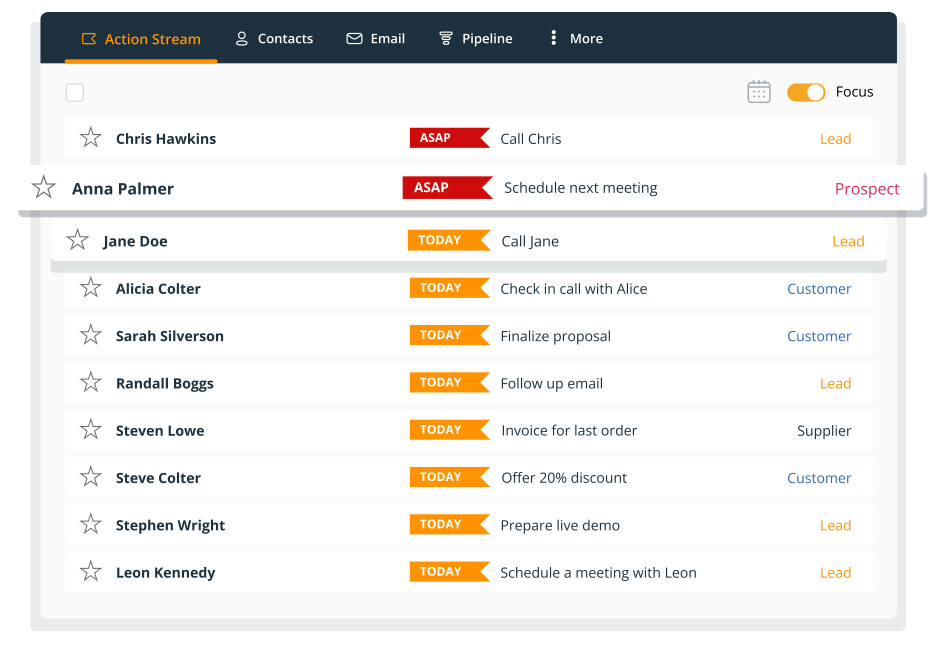
In OnePageCRM, every action is linked to a contact. These actions make up the Action Stream, the core of the CRM, which shows you who to contact next.
Unlike CRMs like Pipedrive that attach tasks to deals, OnePageCRM starts with the person. You can still see the deal and its value on the contact record, but your day begins with who to reach, not which deal to chase.
OnePageCRM encourages you to add a Next Action for every contact, and all your contacts come together in one Action Stream, sorted by urgency.
And when you open a contact, you can see their full history, including emails, calls, notes, and deals, so you can pick up right where you left off.
Zoho CRM
Zoho CRM has a dedicated Tasks module, with tasks related to leads, contacts, accounts, and deals. You can set reminders and recurring tasks, and see tasks alongside calls and meetings as part of your activities.
Copper
In Copper, a task is related to a single record, such as a lead, person, company, opportunity, or project. Copper integrates with Gmail and Google Calendar, so your tasks sit close to your email and your schedule.
Conclusion
CRM task management is about keeping the promises you make to your leads and customers. And doing that is a lot easier when you know who you made it to, what you said you’d do, and by when.
That’s what you get when your tasks are tied to contacts.
In OnePageCRM, each contact gets a Next Action, which is the next task you plan to do with them. All your Next Actions are listed in your Action Stream, with the most urgent ones at the top. And when you finish one, OnePageCRM asks you to set the next task, so you’re less likely to forget about a lead or customer.
Try OnePageCRM free and see how simple follow-ups can be!