Powerful email communication
Sync your inbox, send and receive emails, and keep every thread on the contact it belongs to.
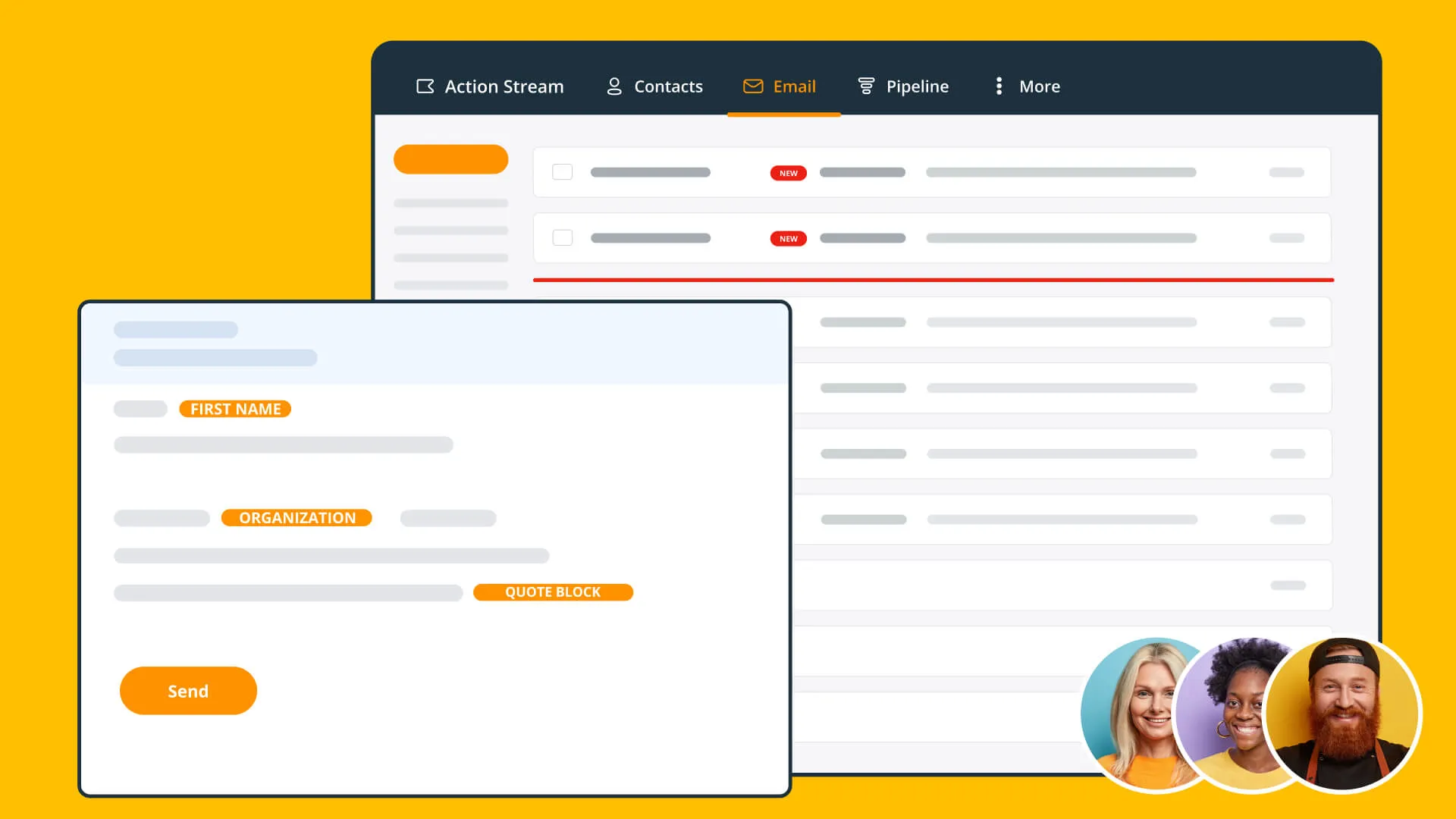

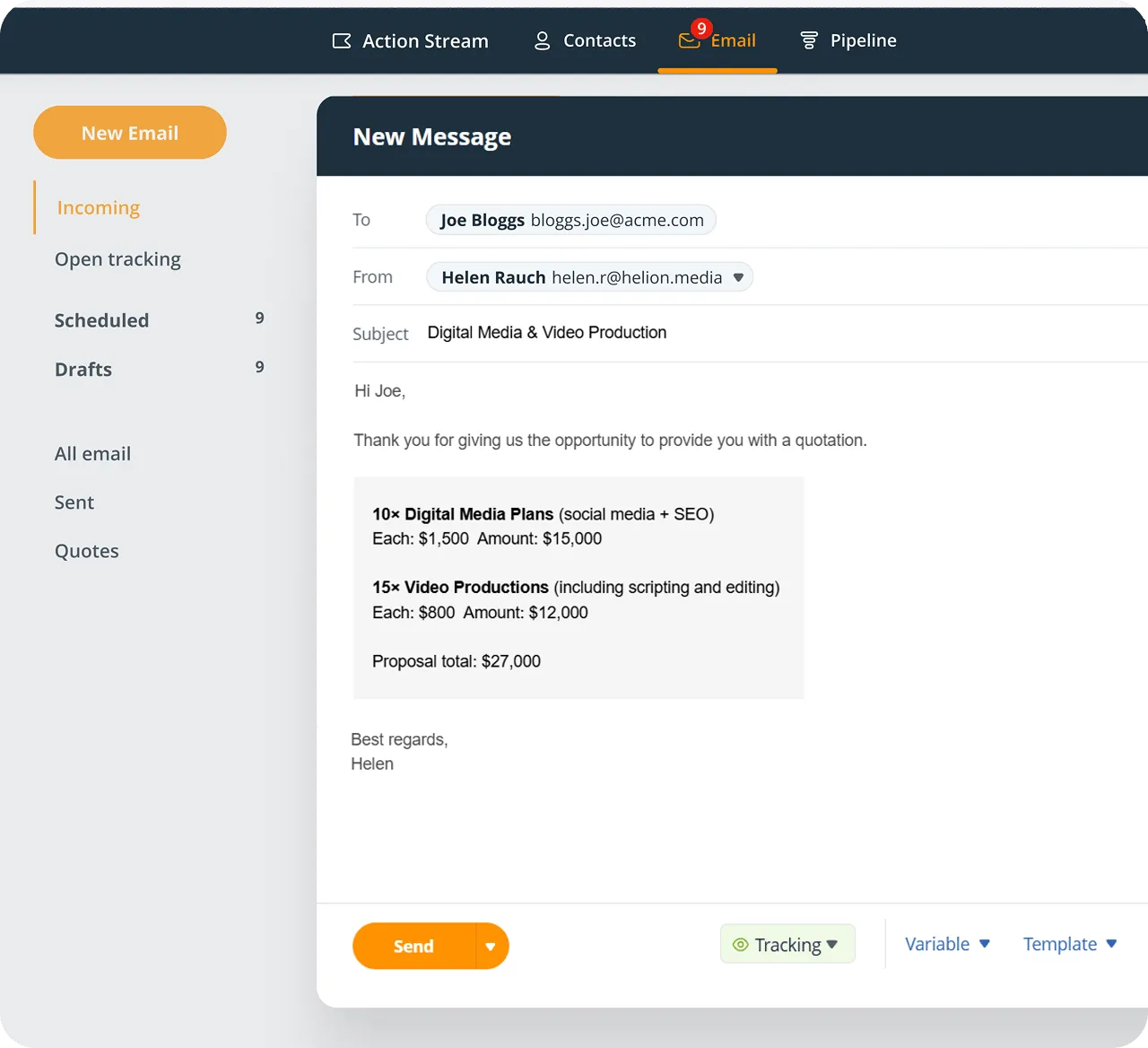
Keep all important emails in one place
Enable two-way sync
Send, receive, and store emails right in your CRM. No more sifting through several inboxes. You keep your own email address.
Track email opens
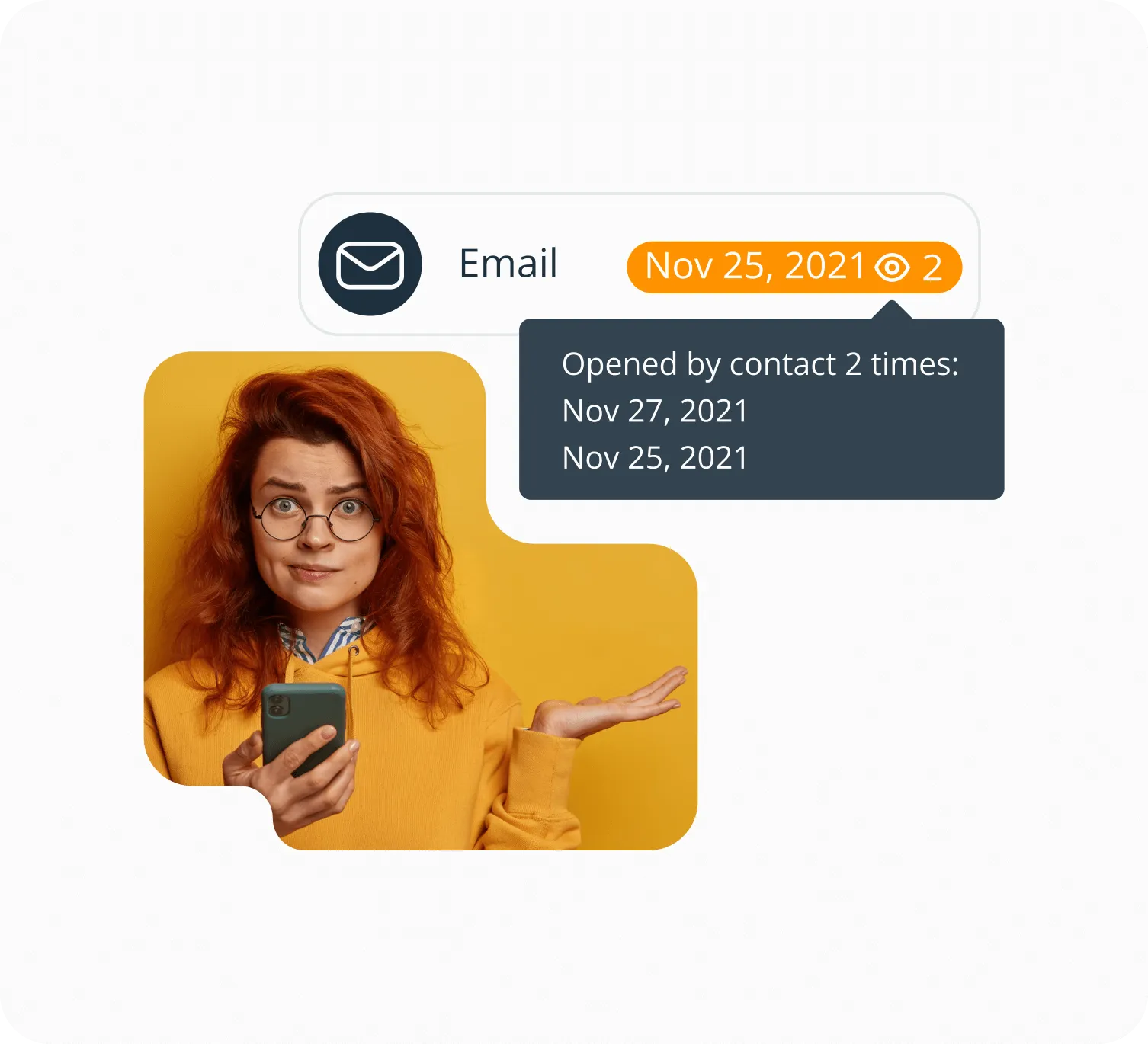
With email open tracking, you can see when clients and prospects open your emails, and even how many times they did it.
Bulk send
Send personalized emails in bulk. Each one is delivered individually, so no recipient sees another.
Email templates
Save templates with attachments and mail merge variables, then drop one into a message in a click.
Email sequences
Write a run of follow-ups in advance and let OnePageCRM send them as they fall due.
Scheduled emails
Write it now, send it later. Pick the date and time a message lands in someone’s inbox.
Email history
New here? Fetch past conversations so a contact arrives with the whole thread, not just what came after.
Excluded emails
Choose which addresses never sync. Conversations with your accountant stay out of the CRM.
What others say

“A very handy feature in OnePageCRM is being able to send bulk emails from your Gmail account from within the CRM, so it doesn’t look like an email blast from Mailchimp. It’s a really quick way to scale your business…”
Siobhan Ogilvy · Marketing Director at TestReach
“The program keeps me on track with my sales leads and communicating with my clients.”
 Roger PinedaGoogle review
“Probably the best CRM available for ease of use and, more importantly, ROI.”
 Steve ElliottOwner at Thrifty Sites
“OnePageCRM was so easy to use and get started.”
 Margo CrawfordProductivity Coach at Wave Productivity
“The ability to complete, track, schedule and make sense of calls, emails and interactions makes thinking about selling more productive and profitable…”
 John KlymshynGoogle review
“…remarkable in its combination of power and simplicity.”
 Tom PressmanGoogle review
“It is clean, and easy to use. It seamlessly syncs across my laptop, tablet, and phone.”
 Justin FuglioGoogle review
“They’ve helped me keep myself organized and grow my little company into a thriving business…”
 Karen SuhakaGoogle review
“This CRM is super intuitive and exceptionally easy to use.”
 Joe LyonsGoogle review
“…this simple extremely effective CRM tool to get organized and free up your brain space.”
 Sally EltzerothGoogle review
“OnePageCRM had everything we needed, without all the bloat.”
 Jason KneppGoogle review
“This without doubt the easiest, most intuitive CRM I’ve ever used.”
 Mike ShivleyGoogle review
“It is probably the easiest CRM I’ve ever used.”
 Robert HeineyGoogle review
“OnePageCRM is just so trim and usable - it’s a breath of fresh air, without the feature bloat that plagues most programs.”
 Paul Johan StokstadGoogle review
“OnePageCRM’s uncluttered interface makes it easy to import and get started, use and update customer information.”
 Mark D.G2 review
“…everyone on our team can pick up where any of us left a conversation because of the ability to keep detailed notes in OnePageCRM.”
 Bret BicoyGoogle review
The best CRM with email integration
21-day free trial • No credit card required • Simple setup
Frequent questions
You can both send and receive emails within OnePageCRM.
You can send newsletters or do promo campaigns by sending bulk emails to groups of clients, investors, or partners straight from within your CRM.
With OnePageCRM, you can keep your Gmail or Outlook email address when reaching out to clients and leads from your CRM.
This way, your communication comes across authentic and not automated (and is stored within your CRM account instead of being scattered across different inboxes).
We sync only the email communication between you and the contacts you have in your CRM system.
All personal communication remains private in your inbox and no one has access to it.
You can enable an automatic sync between your CRM and email client or a manual sync. We will only pull emails to and from contacts you already have in OnePageCRM. You do not want to share your private emails with your colleagues, right?
If you receive an email from a new prospect and want to keep it in your CRM, you can easily create a new contact in OnePageCRM, using our Bcc feature.
All contact-related emails are stored on the individual Contact Page. This means that anyone from your team can have access to these emails without asking you to forward an email threads.
Besides, you can easily find all the past email conversations with a specific client without the frustration of going through your whole inbox or asking team members if they had any individual email exchanges with a client.
OnePageCRM integrates with ActiveCampaign, Mailchimp, and a few other marketing automation tools.
By integrating OnePageCRM with email marketing software, for example, Mailchimp, you can combine the power of both your CRM and email marketing software.
Why choose if you can have both?
OnePageCRM integrates with both Gmail and Outlook.
At the moment, OnePageCRM connects to Gmail or Google Apps email accounts as well as Hotmail, Outlook.com and any IMAP account (e.g., Yahoo, Apple iCloud or your business domain email account configured on your email client, e.g. Outlook).
However, if your email account is on an Exchange Server you might ask your IT administrator if it’s IMAP support is enabled – if yes, you can use it without any problems.
Yes, we built Lead Clipper.
This is a free app for parsing contact data from any web page, including the Outlook inbox. It takes just one click to parse the email page, and OnePageCRM will automatically detect contact details and create a new contact in your CRM.
Lead Clipper is a free data parsing tool that automates the process of data entry by automatically detecting and extracting contact information from web pages and emails. You can easily extract details such as a contact's name, their job title, company name, email address, and much more.
If you want to see other team members’ correspondence with a contact they will have to enable the integration on their accounts.
Without it, only your correspondence will be visible in OnePageCRM.
Note that for privacy reasons we do not pull correspondence sent / received prior to the moment you enabled the integration.
Not all emails are created equal. And some require more privacy than others. That’s why you can select which email addresses to exclude.
Perhaps, you don’t want to mix emails from your leads with the ones from your vendors.
All you need to do is add their email addresses to the List of globally excluded emails and your conversations with them won’t be stored in OnePageCRM.
Emails from other OnePageCRM users are automatically excluded.
Some of your internal communication is better to remain private.
After all, the whole team doesn’t really need to know about Jack’s vacation plans. This way, we keep your email stream clutter-free and your team relationships intact.
And if you want to update your team member on a sales-related topic, you can always @mention them in a note!
You’ll be notified about re-enabled sync.
Sometimes you might want to keep more sensitive conversations, like, for example, the ones related to financial or security issues, outside of your CRM.
And that’s no problem. You can simply disable email sync for those contacts in just one click.
And if at any point one of your team members decides to re-enable it, you will get instantly notified by email so you can take appropriate action.