Research a company and add its decision-makers
Research the company [company name], find the key decision-makers, add each as a contact in my CRM tagged with their role, and save anything else useful as a note.
44 prompts to copy-paste into your AI to do work inside OnePageCRM.

Add people, find them again, and keep the records tidy.
Research the company [company name], find the key decision-makers, add each as a contact in my CRM tagged with their role, and save anything else useful as a note.
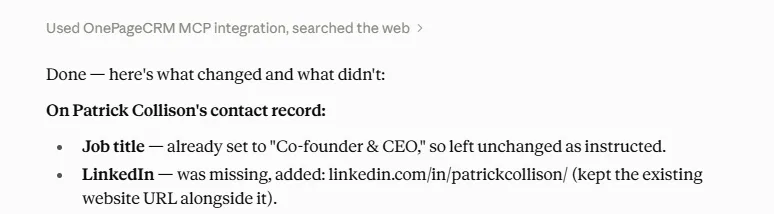
Look up [contact name] at [company name] and fill in any missing details on their contact record: job title, LinkedIn, and company size. Only update fields that are currently missing, and leave existing information unchanged.
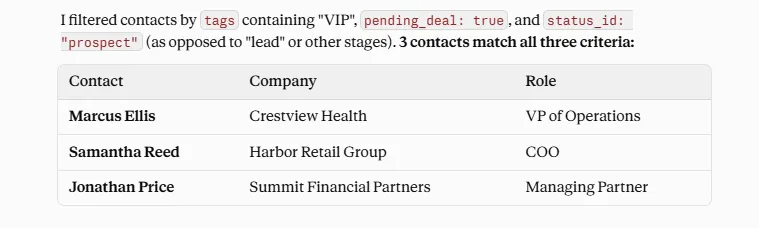
Find all contacts who are prospects, tagged ‘VIP,’ and have an open deal.
Find all contacts with overdue open actions and show the action, due date, and contact details.
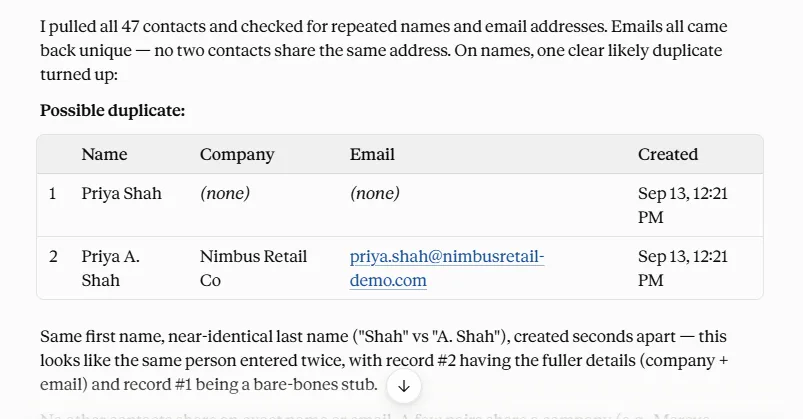
Find any contacts in my CRM that look like duplicates (same name or email) and list them so I can review before merging.
Import this trade show spreadsheet to my CRM: create each person as a contact, set them as Leads, and tag them Trade Show 2026.
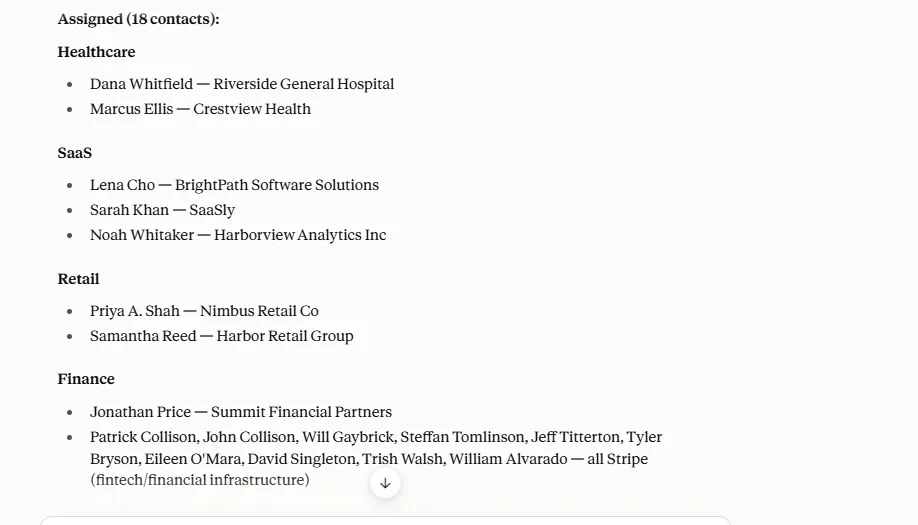
Review my contacts and identify those without an industry tag. Based on the company and job information already available in their contact records, assign an appropriate industry tag. Skip contacts where there isn’t enough information to determine the industry, and list those contacts at the end.
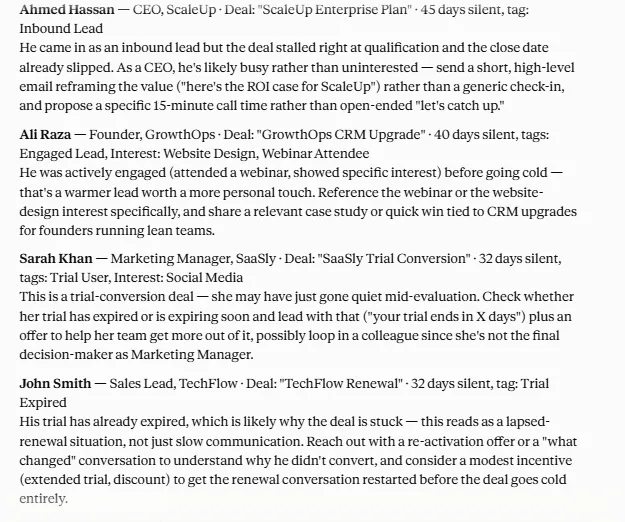
Find leads with an open deal who haven’t had any activity in the last 30 days, and suggest how I should re-engage each one.
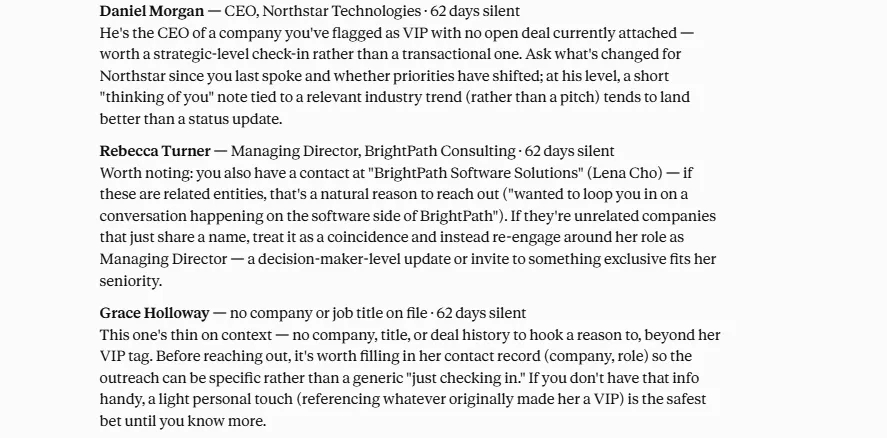
Find contacts tagged VIP who I haven’t contacted in two months, and suggest a reason to reach back out to each.
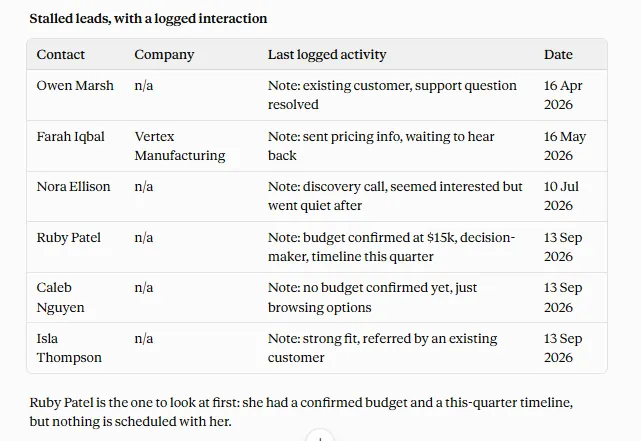
Which leads have gone quiet? Only include the ones that stalled. Leave out anyone whose sales cycle I’ve already closed, and tell me what the last activity was on each.
Star every contact with an open deal closing in the next 14 days.
Give me a quick profile of [contact name], including their role, company, and anything relevant from recent news before I reach out.
Prepare a short pre-call brief for [company name]. Use CRM data to summarize past interactions, open tasks, and active deals, then check the web for any recent updates. Tell me where we left off, what’s open, and what’s new.
Set the company name for [first contact] and [second contact] to [company name], and record their respective roles: [first contact] is the decision maker and [second contact] is the influencer.
Find all contacts at SaaS companies who are currently prospects.
For all contacts tagged ‘VIP’ who work at SaaS companies, set their Industry custom field to ‘SaaS.’
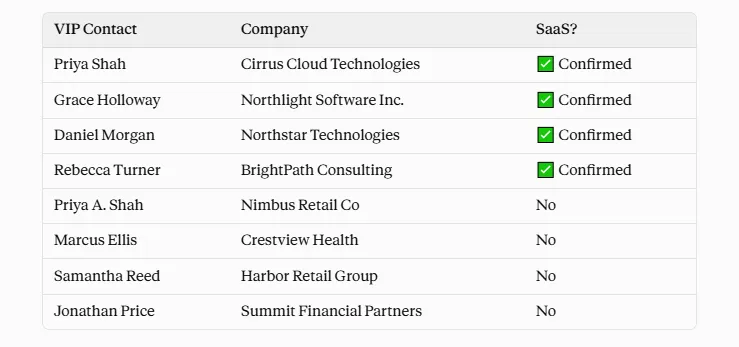
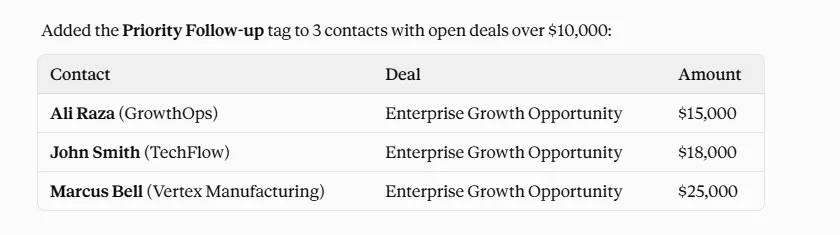
Add the ‘Priority Follow-up’ tag to every contact with an open deal worth more than $10,000.
Clear the overdue list, sort the new leads, and decide what to do first.
If the number of contacts with overdue actions exceeds 5, reschedule them (no more than 2 actions per day, starting today). Treat contacts with deals as high priority.
Score my new leads according to the right fit and budget, and tag each one Hot, Warm, or Cold.
Group my contacts by where they stand in the buying process: active deals, gone quiet, and never contacted.
Go through everyone tagged Web Form Lead, qualify them, and set a Next Action to follow up or flag the ones to close out.
List my follow-ups due today and this week, ranked by deal value, so I know where to start.
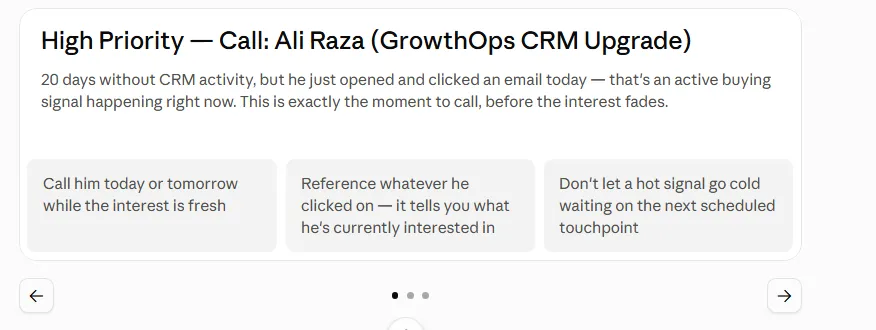
Move deals along and spot the ones going quiet.
Add a new deal for [contact name] worth [amount], set the stage to Qualified, and set the expected close date to [date].
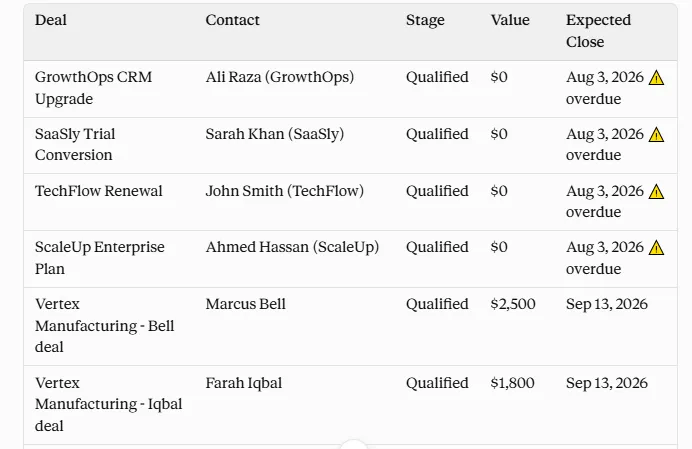
Show me all open deals, including their stage, value, and expected close date.
Move the [deal name] deal for [contact name] to Negotiation and update the value to [amount].
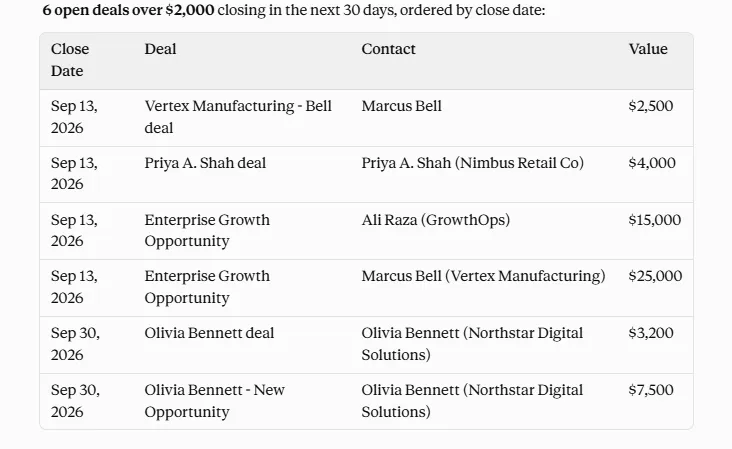
Show me all open deals over $2000 closing within the next 30 days, ordered by close date.
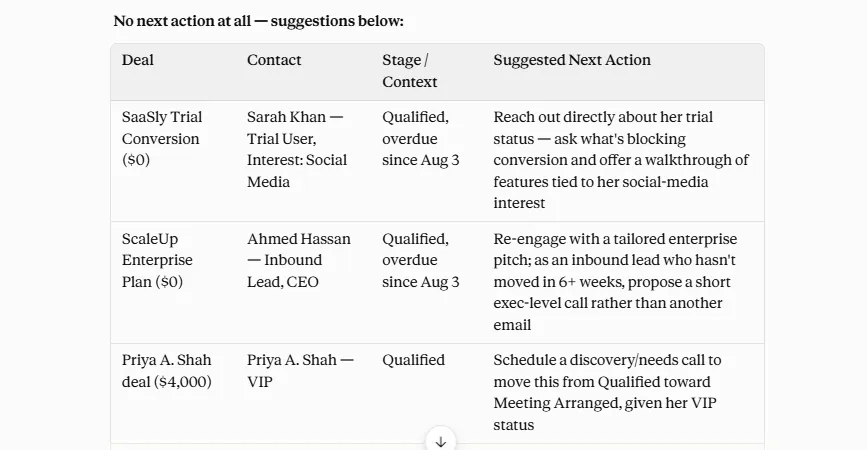
For every contact with an open deal that has no Next Action, suggest one.
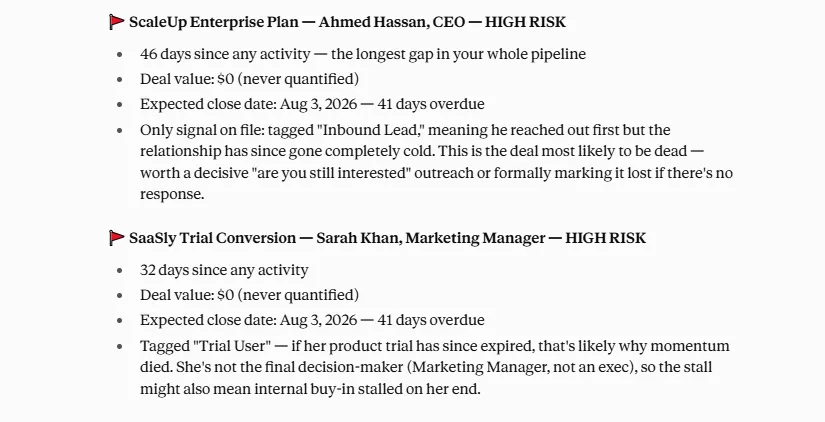
Flag any open deals with no notes or actions logged in the past two weeks, and tell me which ones are at risk.
Pull up everything we know about the [deal name] deal and draft a re-engagement email to restart the conversation.
Move [deal name] to the Delivery pipeline now that it’s won, and set a first task for onboarding.
Log what happened, and pull in Zoom, Gmail, your calendar, and ActiveCampaign while you are at it.
Log my call with [contact name]: [what they said], move their deal to Proposal Sent, and remind me to follow up Friday.
Get my latest Zoom transcript with [contact name]. Pull out the action items, add them as Next Actions on their contact, and draft my follow-up email.
Summarize all past notes and interactions with [contact name] so I’m ready for our call.
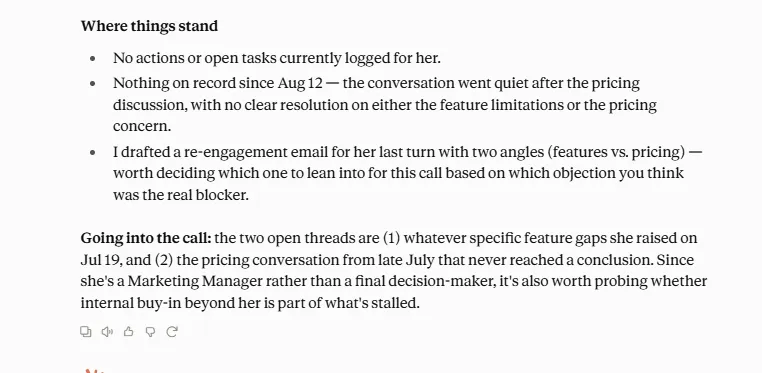
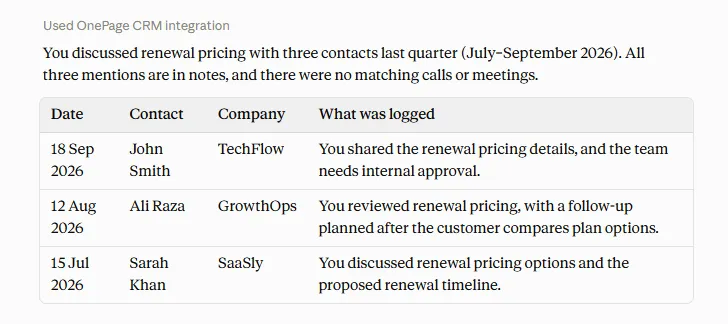
Who did I talk to about renewal pricing last quarter? List each contact, the date, and what they said.
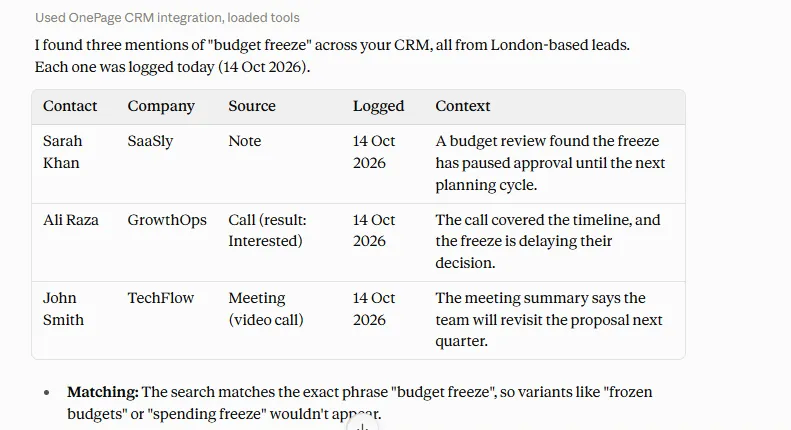
Search notes, call logs, and meeting summaries in my CRM for any mention of “budget freeze.” Show me which contacts it came from, when it was logged, and a one-line summary of the context. Only include leads based in London.
Draft a follow-up email to [contact name] about [topic], written in my style.
Book a follow-up with [contact name] next Tuesday, add it to my calendar, and log it on their contact in my CRM.
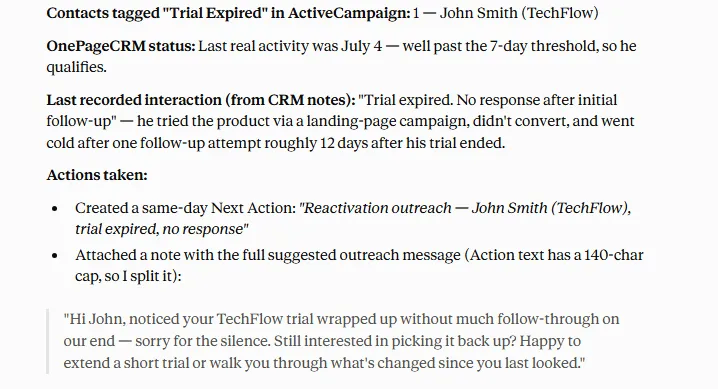
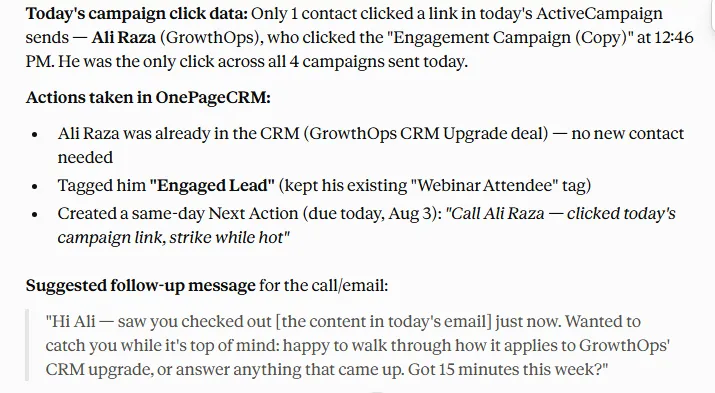
Pull the list of contacts who clicked a link in yesterday’s ActiveCampaign campaign. Add them to OnePageCRM (if not already present), tag them as ‘Engaged Lead,’ and create a same-day Next Action with a suggested follow-up message.
Ask for a report in a sentence and read it back as a chart.

Build an interactive report on the quality of all my web form submissions in OnePageCRM this month.
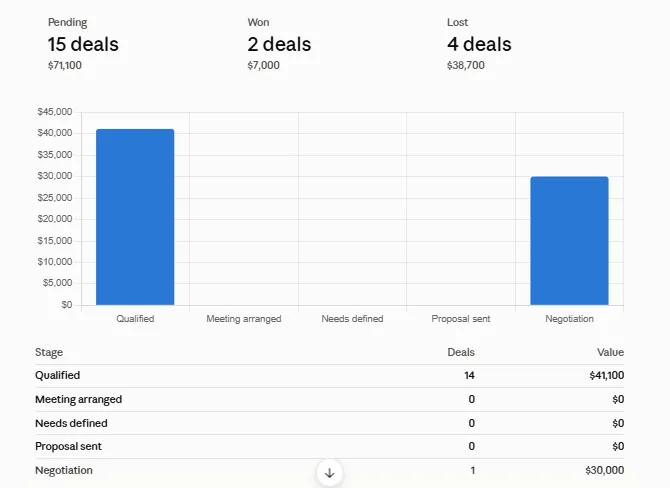
Build an interactive report comparing my deal pipeline performance by stage. For each Sales pipeline stage, show the number of deals and total deal value, and also summarize the overall won, lost, and pending deals.
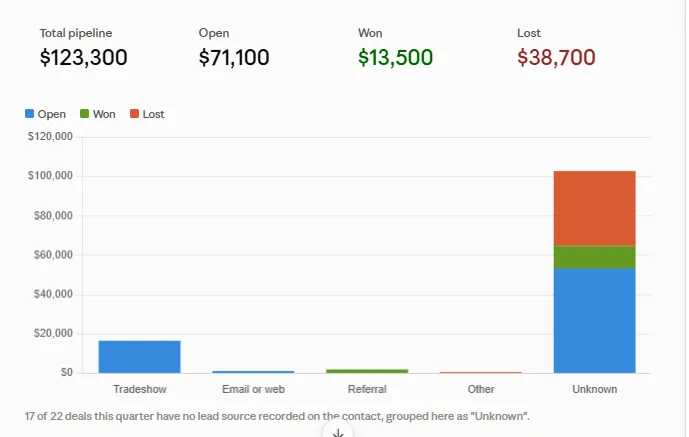
Build me an interactive dashboard of this quarter’s pipeline (open, won, and lost) broken down by Lead Source.
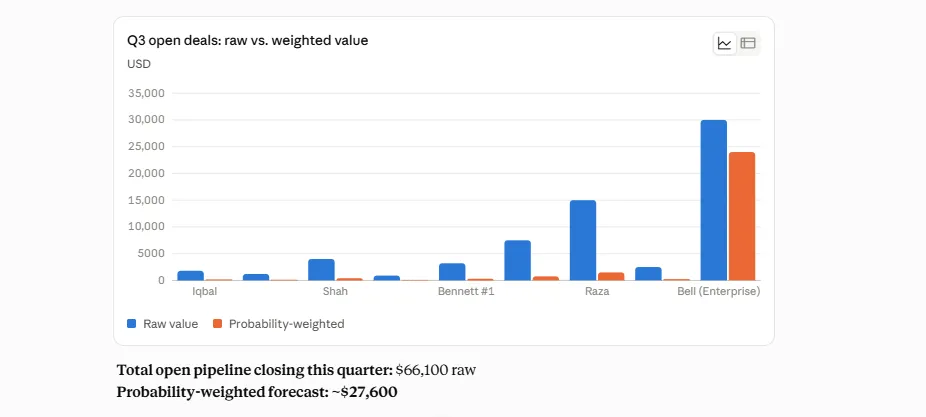
Based on my open deals and their stages, estimate likely closed revenue for this quarter and flag any deals that look overly optimistic.
Read the notes on every deal I lost last quarter, list the top objections, and build a report I can analyze.
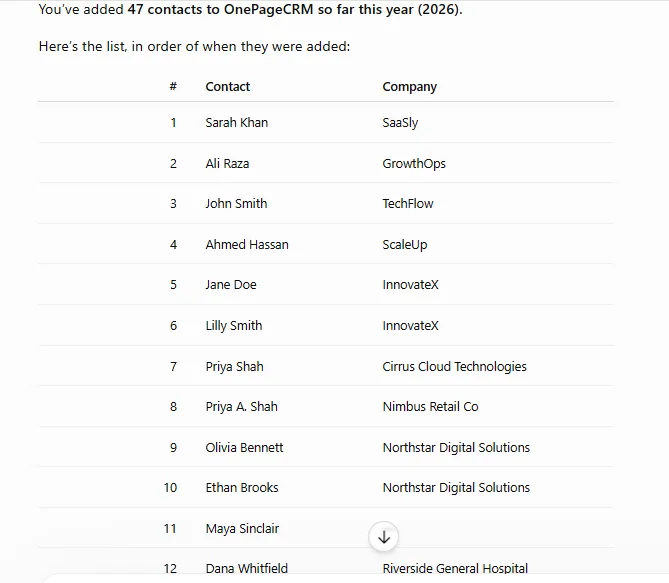
How many contacts have been added to my OnePageCRM account this year? Show me the list.